Importer des actions en masse
Traduction automatique de l'anglais. Original en anglais affiché.
If you have an action list document in XLS format, you can mass upload its actions into TeamGuru.
Prepare the file
-
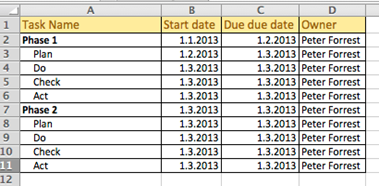
Prepare the action list. Prepare the action list you want to upload.
-
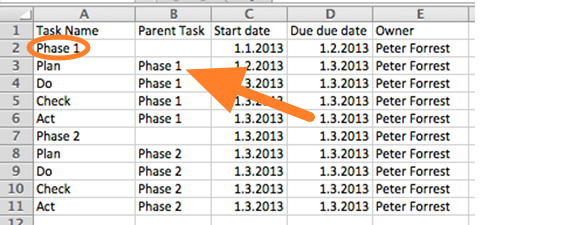
Indicate parent tasks. When uploading a subtask structure, indicate the parent task of each action.
-
Use an accepted date format. Accepted date formats are D.M.YYYY or YYYY-M-D (e.g. 1.3.2013 for March 1st, 2013).
You can upload the file in two ways: A) using the clipboard, or B) using a predefined template.
A) Upload the actions using the clipboard
-
Copy the data. Select the data in your prepared XLS file and copy it (Ctrl+C).
-
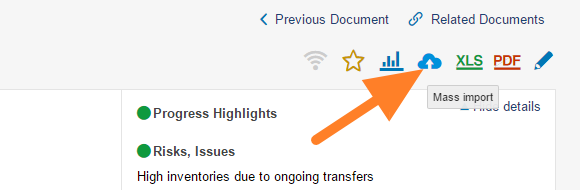
Open the mass import. Go to the action list and click the Mass Import icon.
-
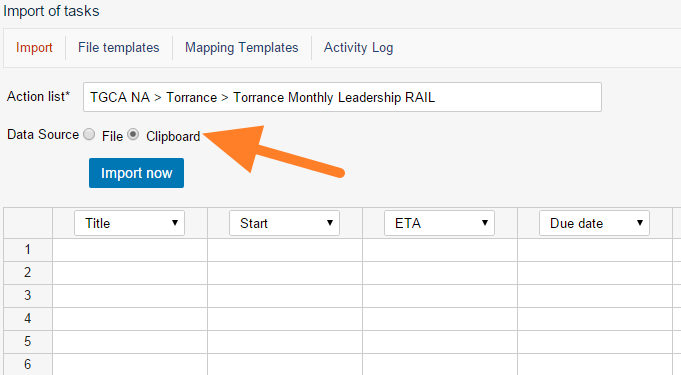
Choose the clipboard. As the Data Source, select Clipboard.
-
Paste the actions. Click into the first cell and paste the actions (Ctrl+V).
-
Set the column order. Set up the order of the columns by changing the column headers as needed.
-
Import the actions. Click the Import now button.
B) Upload the file using a predefined template
-
Save the file as CSV. In Excel, click Save As and select the CSV file format.
-
Open the mass import. Go to the action list and click the Mass Import icon.
-
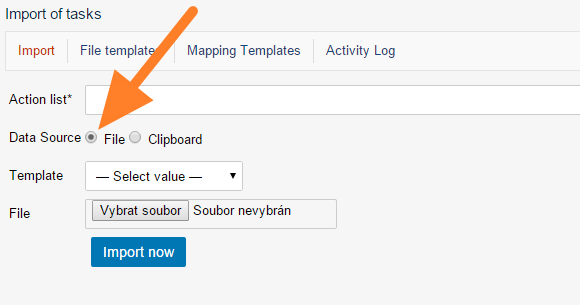
Choose a file. As the Data Source, select File.
-
Select the template. Select a predefined template (see how to create a file template).
-
Upload the file. Upload your CSV file.
-
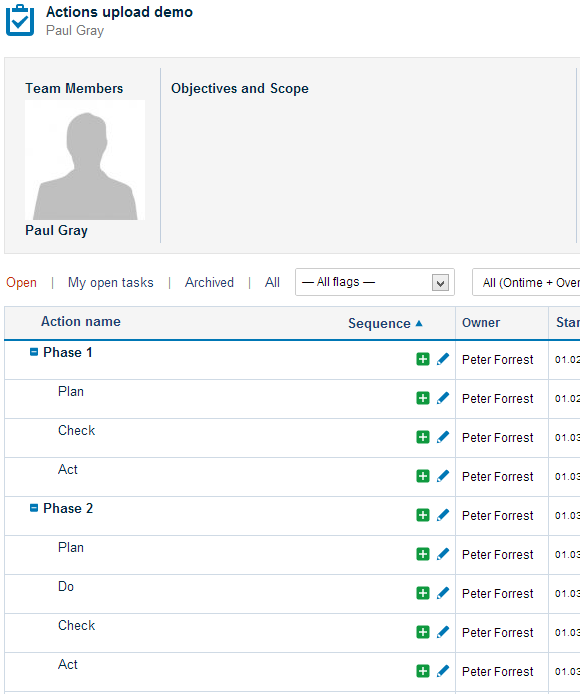
Check the results. Go to your TeamGuru action list to check the upload results.
Si vous avez un plan d’action au format XLS, vous pouvez importer toutes ses actions dans TeamGuru en une fois.
Préparer le fichier
-
Préparez le plan d’action. Préparez le plan d’action à importer.
-
Indiquez les tâches parentes. Si vous importez une structure de sous-tâches, indiquez la tâche parente de chaque action.
-
Utilisez un format de date accepté. Les formats de date acceptés sont J.M.AAAA ou AAAA-M-J (par exemple 1.3.2013 pour le 1er mars 2013).
Vous pouvez importer le fichier de deux façons : A) par le presse-papiers ou B) avec un modèle prédéfini.
A) Importer les actions par le presse-papiers
-
Copiez les données. Sélectionnez les données dans votre fichier XLS et copiez-les (Ctrl+C).
-
Ouvrez l’import en masse. Ouvrez le plan d’action et cliquez sur l’icône Import en masse.
-
Choisissez le presse-papiers. Comme Source des données, sélectionnez Presse-papiers.
-
Collez les actions. Cliquez dans la première cellule et collez les actions (Ctrl+V).
-
Définissez l’ordre des colonnes. Ajustez l’ordre des colonnes en modifiant leurs en-têtes si besoin.
-
Importez les actions. Cliquez sur le bouton Importer maintenant.
B) Importer le fichier avec un modèle prédéfini
-
Enregistrez le fichier au format CSV. Dans Excel, cliquez sur Enregistrer sous et sélectionnez le format CSV.
-
Ouvrez l’import en masse. Ouvrez le plan d’action et cliquez sur l’icône Import en masse.
-
Choisissez un fichier. Comme Source des données, sélectionnez Fichier.
-
Sélectionnez le modèle. Sélectionnez un modèle prédéfini (voir créer un modèle de fichier).
-
Importez le fichier. Importez votre fichier CSV.
-
Vérifiez le résultat. Ouvrez votre plan d’action TeamGuru pour vérifier le résultat de l’import.
Besoin d'aide supplémentaire ?
Écrivez-nous. Les jours ouvrés, nous répondons en général en moins d'une heure.