Cómo cargar acciones de forma masiva
Traducción automática del inglés. Se muestra el original en inglés.
If you have an action list document in XLS format, you can mass upload its actions into TeamGuru.
Prepare the file
-
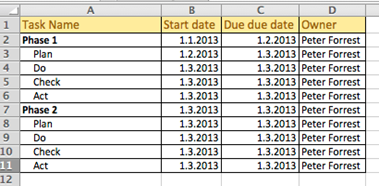
Prepare the action list. Prepare the action list you want to upload.
-
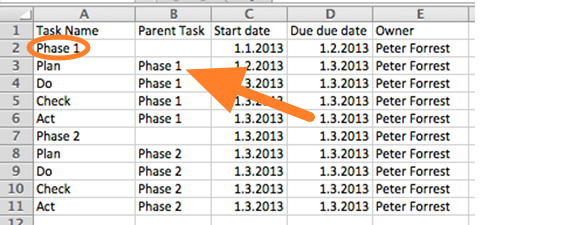
Indicate parent tasks. When uploading a subtask structure, indicate the parent task of each action.
-
Use an accepted date format. Accepted date formats are D.M.YYYY or YYYY-M-D (e.g. 1.3.2013 for March 1st, 2013).
You can upload the file in two ways: A) using the clipboard, or B) using a predefined template.
A) Upload the actions using the clipboard
-
Copy the data. Select the data in your prepared XLS file and copy it (Ctrl+C).
-
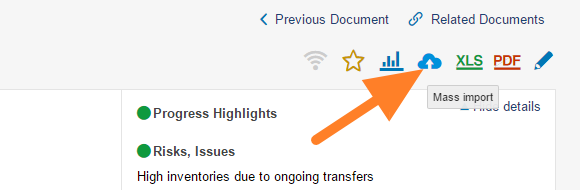
Open the mass import. Go to the action list and click the Mass Import icon.
-
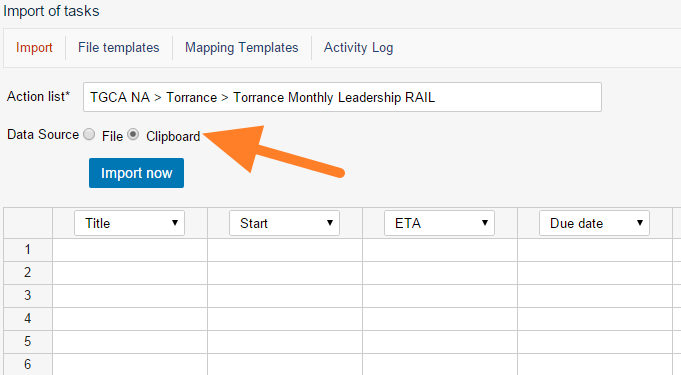
Choose the clipboard. As the Data Source, select Clipboard.
-
Paste the actions. Click into the first cell and paste the actions (Ctrl+V).
-
Set the column order. Set up the order of the columns by changing the column headers as needed.
-
Import the actions. Click the Import now button.
B) Upload the file using a predefined template
-
Save the file as CSV. In Excel, click Save As and select the CSV file format.
-
Open the mass import. Go to the action list and click the Mass Import icon.
-
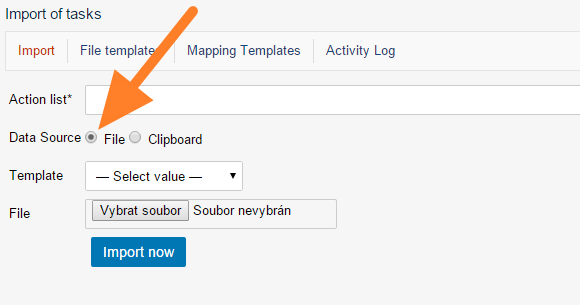
Choose a file. As the Data Source, select File.
-
Select the template. Select a predefined template (see how to create a file template).
-
Upload the file. Upload your CSV file.
-
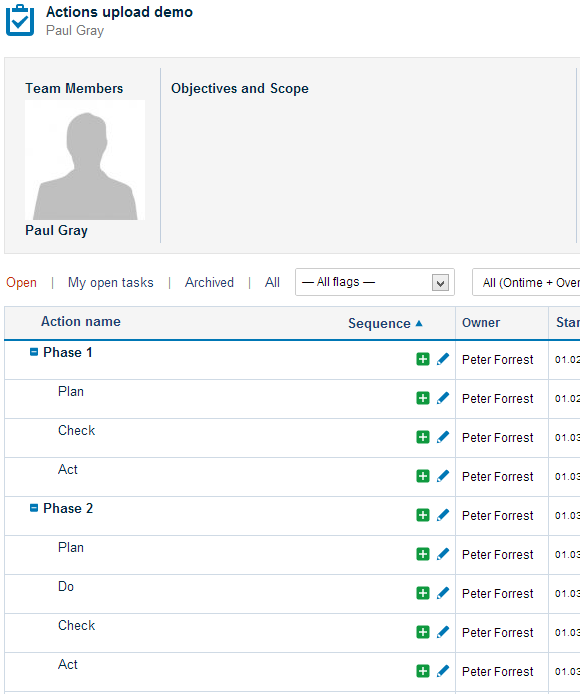
Check the results. Go to your TeamGuru action list to check the upload results.
Si tiene un plan de acción en formato XLS, puede cargar todas sus acciones en TeamGuru de una sola vez.
Preparar el archivo
-
Prepare el plan de acción. Prepare el plan de acción que quiere cargar.
-
Indique las tareas principales. Si carga una estructura con subtareas, indique la tarea principal de cada acción.
-
Use un formato de fecha admitido. Los formatos de fecha admitidos son D.M.YYYY o YYYY-M-D (por ejemplo, 1.3.2013 para el 1 de marzo de 2013).
Puede cargar el archivo de dos formas: A) con el portapapeles o B) con una plantilla predefinida.
A) Cargar las acciones con el portapapeles
-
Copie los datos. Seleccione los datos en su archivo XLS y cópielos (Ctrl+C).
-
Abra la importación masiva. Vaya al plan de acción y haga clic en el ícono Importación masiva.
-
Elija el portapapeles. En Origen de datos, elija Portapapeles.
-
Pegue las acciones. Haga clic en la primera celda y pegue las acciones (Ctrl+V).
-
Defina el orden de las columnas. Ajuste el orden de las columnas cambiando los encabezados según sea necesario.
-
Importe las acciones. Haga clic en el botón Importar ahora.
B) Cargar el archivo con una plantilla predefinida
-
Guarde el archivo como CSV. En Excel, haga clic en Guardar como y elija el formato CSV.
-
Abra la importación masiva. Vaya al plan de acción y haga clic en el ícono Importación masiva.
-
Elija un archivo. En Origen de datos, elija Archivo.
-
Seleccione la plantilla. Elija una plantilla predefinida (vea cómo crear una plantilla de archivo).
-
Cargue el archivo. Cargue su archivo CSV.
-
Revise el resultado. Abra su plan de acción en TeamGuru para revisar el resultado de la carga.
¿Necesita más ayuda?
Escríbanos. En días laborables solemos responder en menos de una hora.