如何与外部合作伙伴共享文档
本文由英文机器翻译。 当前显示英文原文。
TeamGuru enables you to share any of your documents with your external partners. Sharing a document online with an external partner takes three steps: create the partner’s card, create an account for the partner’s contact person, and share the document.
Prepare the partner
- Create the partner’s card. Create an external partner card: see How to create a new partner’s card.
- Create the contact person’s account. Create an account with system access for the external partner’s contact person: see How to create a new partner contact and access.
Share the document
-
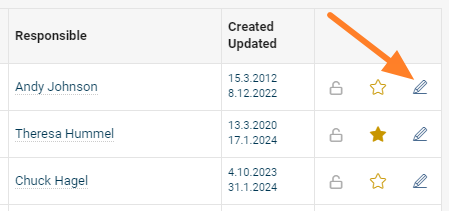
Open the document edit screen. Go to the document’s edit screen.
-
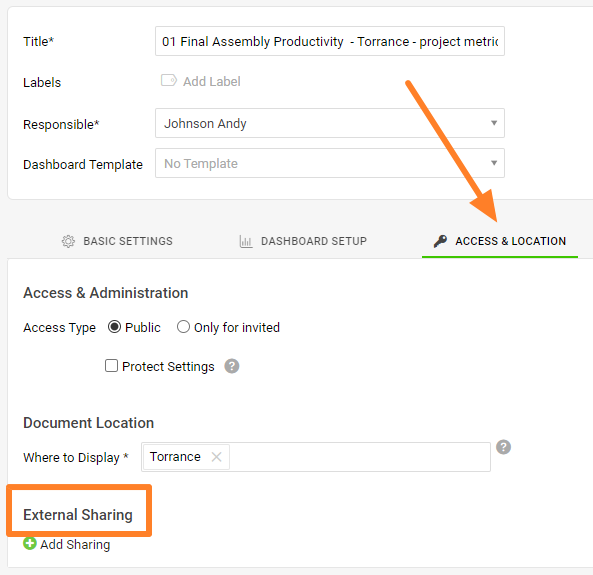
Go to External Sharing. Open the Access & Location tab, then the External Sharing section.
-
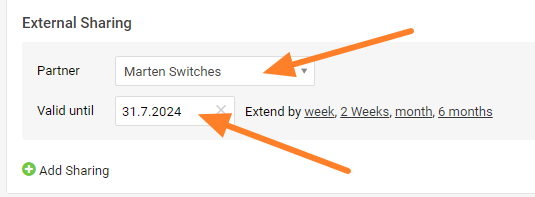
Add the sharing. Click the green plus button Add Sharing and search for the partner’s name in the directory. Set the Valid until date and confirm with the Save & View button in the top right corner.
-
Let your partner log in. The document is visible to your external partner once they log in to the system.
TeamGuru支持与外部合作伙伴共享任何文档。与外部合作伙伴在线共享文档分三步:创建合作伙伴卡片、为合作伙伴的联系人创建账户、共享文档。
准备合作伙伴
- 创建合作伙伴卡片。 创建外部合作伙伴卡片:参见如何创建合作伙伴卡片。
- 创建联系人账户。 为外部合作伙伴的联系人创建可访问系统的账户:参见如何创建合作伙伴联系人并开通访问权限。
共享文档
-
打开文档编辑页面。 进入文档的编辑页面。
-
进入外部共享。 打开 访问与位置 选项卡,然后进入 外部共享 部分。
-
添加共享。 点击绿色加号按钮 添加共享,在通讯录中搜索合作伙伴名称。设置 有效期至 日期,然后点击右上角的 保存并查看 按钮确认。
-
合作伙伴登录查看。 外部合作伙伴登录系统后即可看到该文档。
还需要帮助吗?
请给我们留言。工作日我们通常会在一小时内回复。