New Dashboard Settings
We have recently upgraded our metric dashboard settings. You can now track and report data not only for organization units, projects, partners and object groups, but also for users, actions, products and product families.
These newly added data collection objects can also be preset in an object group, so it is easy to upload the same group of objects into several metric dashboards. See the details below.
Watch the video guide, or follow the text instructions below.
Settings tabs
Find the settings tabs
The edit mode of metric dashboards is organized into these tabs: Basic Settings, Dashboard Setup, Access & Location, Related Documents, Subscriptions, Notifications and History.

Learn what each tab contains
- Basic Settings: the first tab contains all the basic settings, such as the interval, view options, row layout etc.
- Dashboard Setup: the data collection objects and metrics in a matrix view. The main enhancement was made here, so all the details are described below.
- Access & Location: lock the data for the public (all system users with access to all documents and data in the specific org. structure unit) and keep it accessible only to invited users (specific TeamGuru users). You can also enable the Protect Settings function and select the system users who are the only ones allowed to edit the dashboard’s settings. To share the dashboard with an external partner, use the External Sharing field and select the partner. An important part of each metric dashboard is the Document Location: the org. structure unit where the dashboard is located.
- Related Documents: link related documents for easy navigation.
- Subscriptions: send the dashboard to mailboxes on a predefined schedule.
- Notifications: set up Data Entry Reminder, Send Overdue Notification or Send RCCA Reminder.
- History: view the history log of changes to the dashboard settings.
Set up data collection objects
Add objects
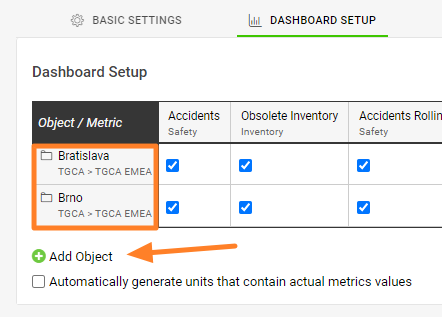
On the Dashboard Setup tab, click Add Object. You can select specific objects or their combinations (objects = org. units, action lists, partners, users, actions, products, product families), or a predefined group of objects using an object group.
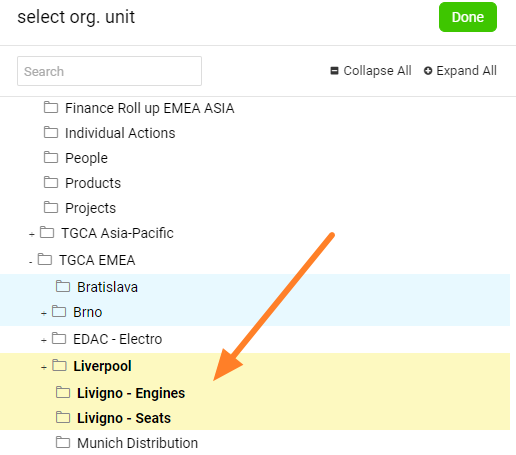
You can also multi-select org. units from the structure: click your org. structure and select as many units as you need in one step.
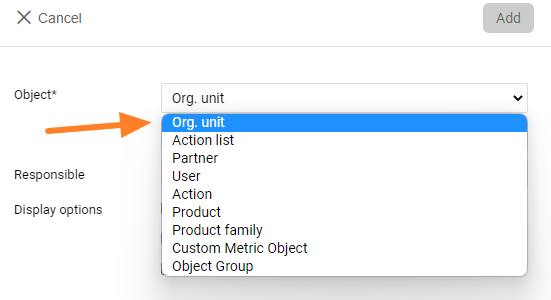
Choose the object type
The data collection objects can be:
Multi-select org. units
Select all the org. units you need by clicking them.
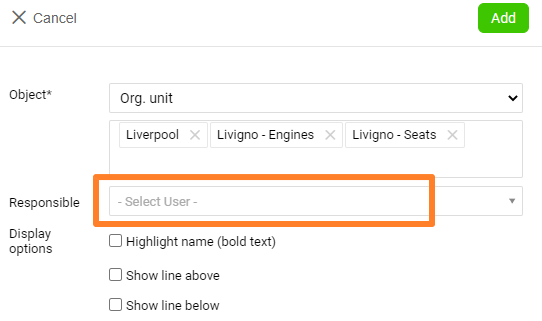
Add a responsible to all selected units
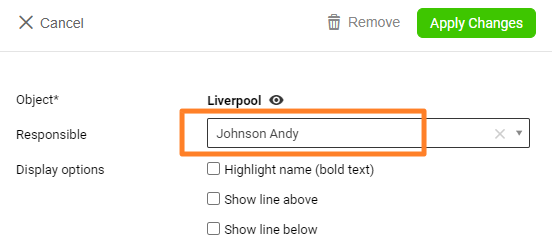
You can add a responsible person (from the list of users) to all the selected org. units on the dashboard at once, when you select the org. units.
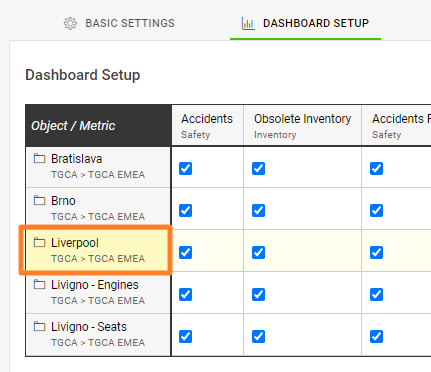
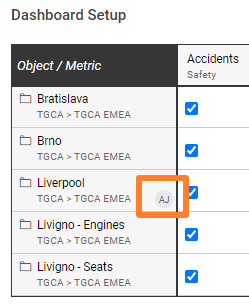
Add a responsible per org. unit
Alternatively, add a responsible to each org. unit separately by clicking the org. unit.
Set up metrics
Add a metric
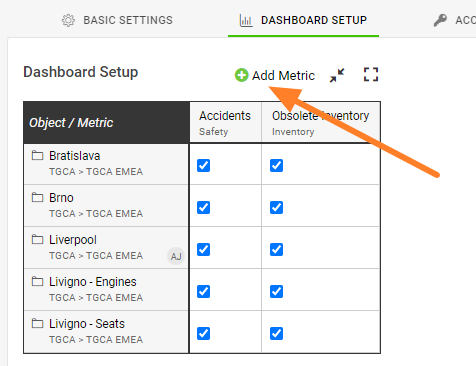
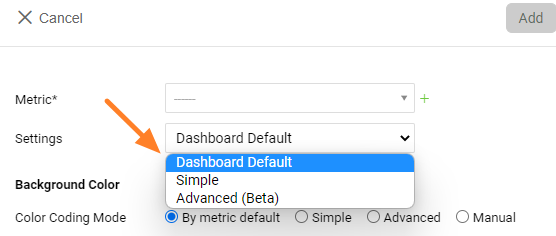
Click Add metric, select from the existing metrics and choose the other settings.
Choose the metric settings
- Dashboard Default applies all the settings from the dashboard’s basic settings.
- Simple provides some basic options, such as showing to-date or full-period values, showing a summary row, hiding values (displaying a red, yellow or green smiley icon) etc.
- Advanced (Beta) provides advanced settings, advanced columns, raw values and calculations from an original metric.
Create a new metric from the dashboard
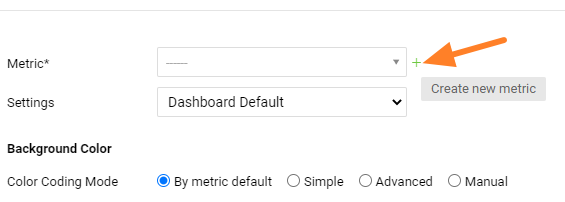
You can also create completely new metrics directly from your dashboard.
Add a responsible per org. unit and metric
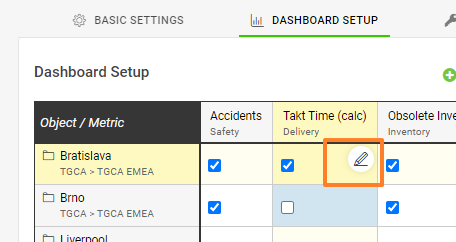
You can add a responsible person for an org. unit and metric combination by clicking the edit pencil at the intersection of the org. unit and the metric.
Move org. units and metrics
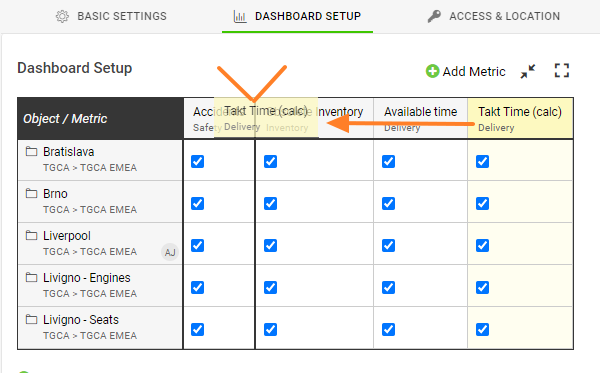
To move an org. unit or a metric, simply drag and drop it.
Use the right-click menu
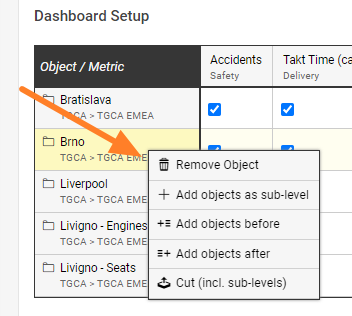
You can also right-click your org. unit or metric to remove the metric, or to add or copy it to a specific place in your dashboard.
Activate or deactivate combinations
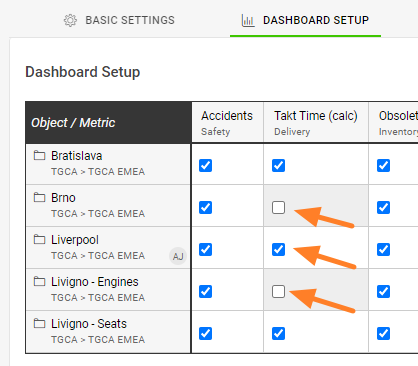
To select which metrics are displayed in the dashboard, tick (activate) or untick (deactivate) the org. unit and metric combination.
Save the settings
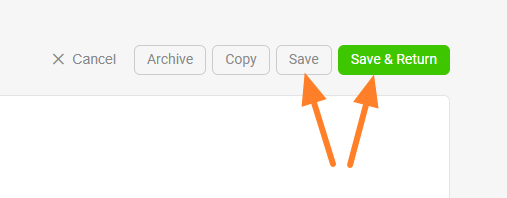
And please, don’t forget to save your settings.
Related articles: Custom Objects and Summary metrics
Still need help?
Write to us. We usually reply within an hour on business days.