Jak utworzyć nową listę działań (projekt)
Tłumaczenie maszynowe z angielskiego. Wyświetlany jest oryginał po angielsku.
Manage all project and meeting actions in one place and standardize project management across your company with ease. You receive an automatic notification when a task is assigned or due for completion, and on-time closure statistics drive the right behaviors.
Create a new action list
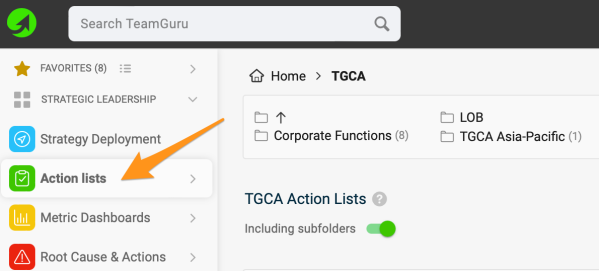
Go to the Action Lists module and click the Create New add icon.

Complete the project header
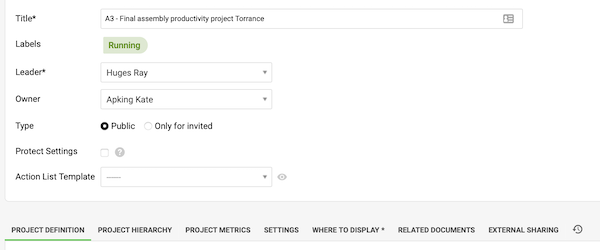
Complete the project header definition (Project Charter) and the settings under the individual tabs.
-
Set the access. Decide whether the action list is public (everyone with access to this folder in your organization structure can enter it), or set it to Only for invited and select the individuals who can enter it. If you tick Protect Settings, only the leader, the owner and the document administrators can modify the project settings.
-
Capture the project goals. Use the Project Metrics tab to capture the project goals. Note: To collect project metrics regularly and keep their history, create a dashboard in the Metric Dashboards module and set it as a Related Document of your action list.
-
Choose where to display it. Choose the org. unit(s) in the Where to display folder. This determines where the document is saved (it can be in one or more places).
-
Save the action list. Click Save & View.
-
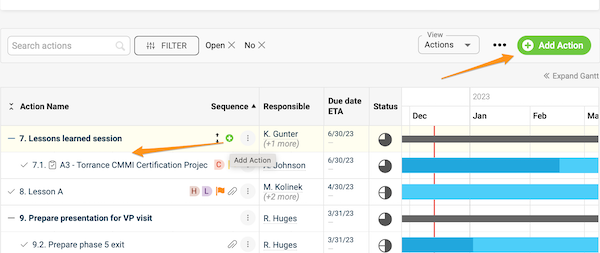
Add actions. Start adding main actions with the Add (plus) Action icon, or sub-actions with the green plus button next to a main action.
-
Read more. See the related articles for further instructions.
Watch the video guide
Zarządzaj wszystkimi działaniami z projektów i spotkań w jednym miejscu i bez wysiłku ujednolicaj zarządzanie projektami w całej firmie. Dostajesz automatyczne powiadomienie, gdy zadanie zostanie Ci przydzielone lub zbliża się jego termin, a statystyki terminowego zamykania zadań budują właściwe nawyki.
Utwórz nową listę działań
Otwórz moduł Listy działań i kliknij ikonę Utwórz nowy.
Uzupełnij nagłówek projektu
Uzupełnij nagłówek projektu (Karta projektu) i ustawienia na poszczególnych kartach.
-
Ustaw dostęp. Zdecyduj, czy lista działań ma być publiczna (wejdzie do niej każdy, kto ma dostęp do tego folderu w strukturze organizacyjnej), czy ustaw Tylko dla zaproszonych i wybierz osoby, które mogą do niej wchodzić. Jeśli zaznaczysz Chroń ustawienia, ustawienia projektu będą mogli zmieniać tylko lider, właściciel i administratorzy dokumentu.
-
Zapisz cele projektu. Cele projektu wpisz na karcie Wskaźniki projektu. Uwaga: aby regularnie zbierać wskaźniki projektu i zachować ich historię, utwórz dashboard w module Dashboardy KPI i ustaw go jako Powiązany dokument listy działań.
-
Wybierz miejsce wyświetlania. W folderze Gdzie wyświetlać wybierz jednostki organizacyjne. Od tego zależy, gdzie dokument zostanie zapisany (może to być jedno lub kilka miejsc).
-
Zapisz listę działań. Kliknij Zapisz i wyświetl.
-
Dodaj działania. Dodawaj działania główne ikoną Dodaj (plus) działanie, a działania podrzędne zielonym plusem obok działania głównego.
-
Czytaj dalej. Więcej instrukcji znajdziesz w powiązanych artykułach.
Obejrzyj wideo
Potrzebujesz dalszej pomocy?
Napisz do nas. W dni robocze zwykle odpowiadamy w ciągu godziny.