Gerenciar a estrutura organizacional: guia rápido
Tradução automática do inglês. Exibindo o original em inglês.
The organization structure is the backbone of your entire TeamGuru system: it organizes the documents across all modules and the access to them. Knowing how to manage it is key to an efficient, well-structured environment. This quick guide walks you through the essential steps for creating, reordering and deleting organization units, for smooth operation and optimal user and document management.
-
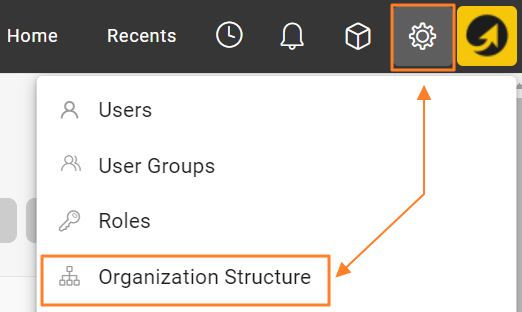
Open the organization structure. Go to the Settings menu and select Organization Structure to view the current structure.
-
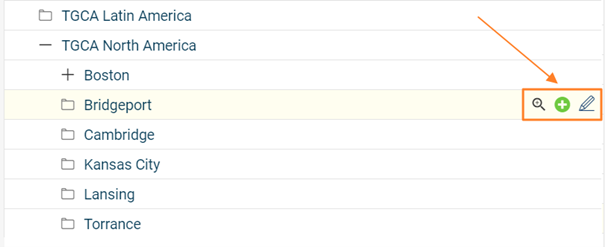
Add, edit or delete units. Modify your organization structure using the buttons next to each organization unit: add new units, edit existing ones, or delete units that are no longer needed.
-
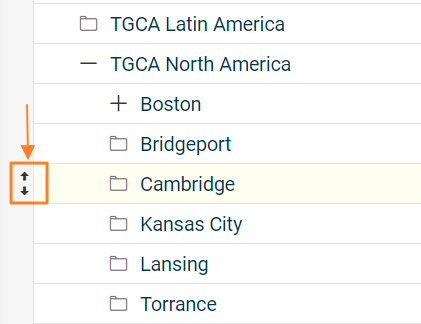
Rearrange the units. Rearrange the units within the structure by drag and drop to move them to the desired position (up/down, left/right).
-
Consider the impact of moving a unit. Moving an organization unit to a different place in the structure also relocates all linked documents that were created and saved under that unit. Take this into account when restructuring, to keep the documents continuous and accessible. Reordering organization units may also affect user rights, so plan accordingly.
-
Delete units with caution. Deleting an organization unit permanently removes the unit and all metrics collected for it. Make sure all relevant data has been properly backed up or transferred before you delete it.
Read the topic Locating Documents Linked to Organization Units before moving or deleting existing organization units.
By following these steps, you can confidently manage your organization structure, optimize the organization of your documents and keep your TeamGuru system streamlined.
A estrutura organizacional é a base de todo o seu sistema TeamGuru: ela organiza os documentos de todos os módulos e o acesso a eles. Saber gerenciá-la é essencial para um ambiente eficiente e bem estruturado. Este guia rápido mostra os passos essenciais para criar, reordenar e excluir unidades organizacionais, para que tudo funcione bem e a gestão de usuários e documentos seja a melhor possível.
-
Abra a estrutura organizacional. Acesse o menu Configurações e selecione Estrutura organizacional para ver a estrutura atual.
-
Adicione, edite ou exclua unidades. Altere a estrutura organizacional com os botões ao lado de cada unidade organizacional: adicione novas unidades, edite as existentes ou exclua as que não são mais necessárias.
-
Reorganize as unidades. Arraste e solte as unidades para movê-las para a posição desejada dentro da estrutura (para cima/baixo, para a esquerda/direita).
-
Avalie o impacto de mover uma unidade. Ao mover uma unidade organizacional para outro lugar da estrutura, todos os documentos vinculados que foram criados e salvos nessa unidade também são realocados. Leve isso em conta ao reestruturar, para que os documentos continuem íntegros e acessíveis. Reordenar unidades organizacionais também pode afetar as permissões dos usuários, então planeje com cuidado.
-
Exclua unidades com cautela. Excluir uma unidade organizacional remove permanentemente a unidade e todas as métricas coletadas para ela. Antes de excluir, verifique se todos os dados relevantes foram salvos em backup ou transferidos corretamente.
Leia o tópico Localizar documentos vinculados a unidades organizacionais antes de mover ou excluir unidades organizacionais existentes.
Seguindo estes passos, você gerencia a estrutura organizacional com segurança, organiza melhor os documentos e mantém seu sistema TeamGuru enxuto.
Precisa de mais ajuda?
Escreva para nós. Em dias úteis, costumamos responder em até uma hora.