How to create a new report
The Reports module can completely replace PowerPoint presentations in your standard reporting. All your reported data are in one place and traceable in history.
TeamGuru lets you add live data directly from the system, e.g. metric charts or statistics from your 8D reports.
Create the report
-
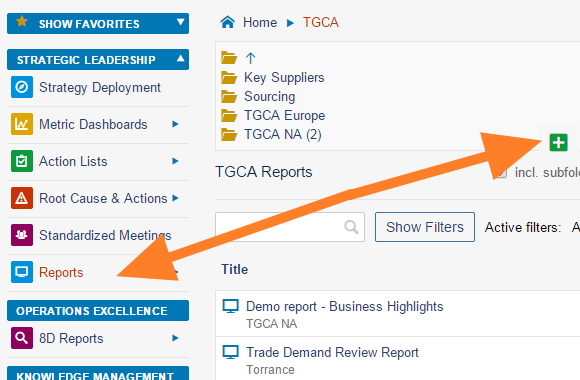
Create a new document. Go to the Reports module and click the Add icon to create a new document.
-
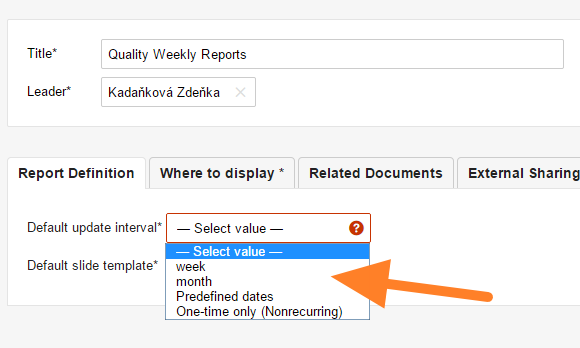
Fill in the basic settings. Enter the report name and the responsible person, and select the Default update interval.
-
Select the slide template. Select the default slide template for your report (see How to create a new report template) and save the document.
-
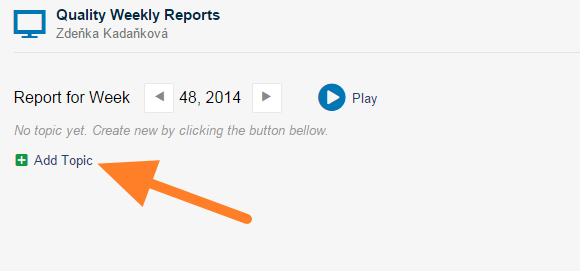
Add a slide. Click the Add Topic button to add a new slide.
-
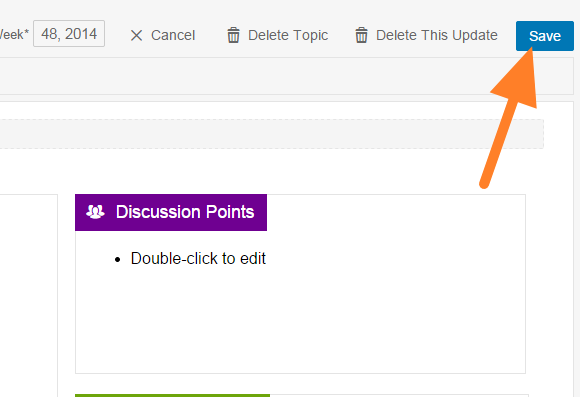
Fill in the report. Fill in your report and save it. Tips: add 8D Reports statistics, add a metric chart, add a picture.
-
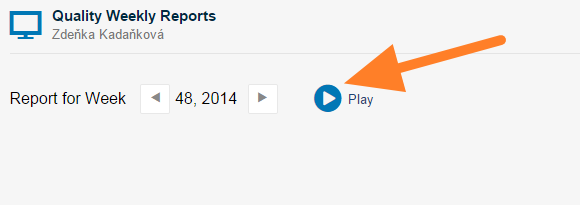
Present the report. Click the Play button to get a full-screen view for your presentation.
You may also be interested in: How to update your report
Video guide
Watch how to create a new report
Still need help?
Write to us. We usually reply within an hour on business days.