How to delete a topic's content
You can delete a topic’s content in two ways: delete only specific widgets, or delete the topic’s full content.
Delete the content
Delete specific widgets
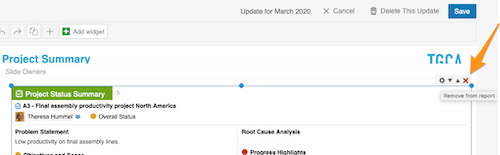
Click the widget, click the X button in its upper right corner and then click Save.
Delete the full content of the topic
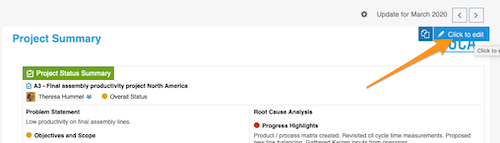
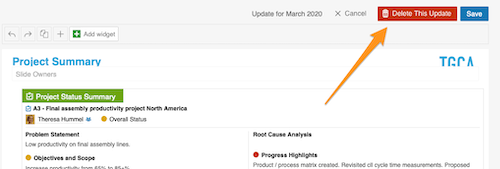
Click your topic and then the blue Click to edit button in the upper right corner. Then select Delete this update and click Save.
Please note: this removes only the topic’s CONTENT, not the whole topic. To learn how to delete the whole topic, follow this link.
Create a new update
Copy the previous update
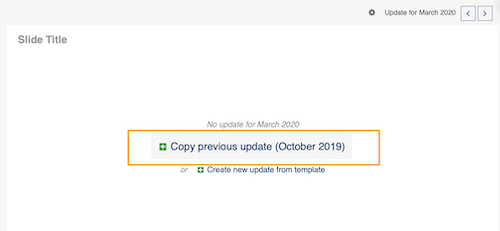
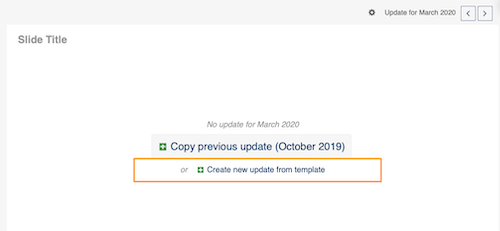
After you delete an update, you have two options to create a new one. Copy previous update copies the most recent update (the topic with all its content): click the green plus button.
Create a new update from the template
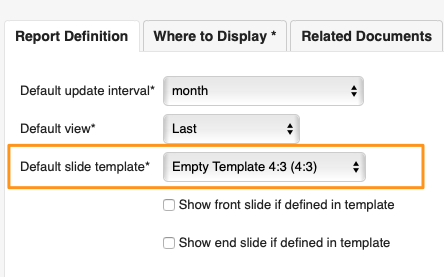
Create new update from template copies only your template, WITHOUT the content: click the green plus button. Your template is set up on the Report Definition tab in your report settings.
Please note: you can copy the previous update or create a new update from the template only if your report is not set up to create slides automatically. If your report is set up to do so, follow this link to learn how to copy updates (slides) to another report or a different time period (day, week…).
Still need help?
Write to us. We usually reply within an hour on business days.