So löschen Sie den Inhalt eines Themas
Maschinelle Übersetzung aus dem Englischen. Englisches Original wird angezeigt.
You can delete a topic’s content in two ways: delete only specific widgets, or delete the topic’s full content.
Delete the content
Delete specific widgets
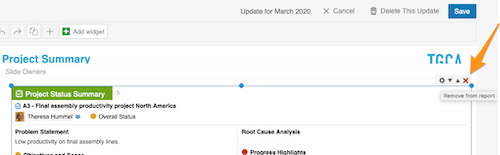
Click the widget, click the X button in its upper right corner and then click Save.
Delete the full content of the topic
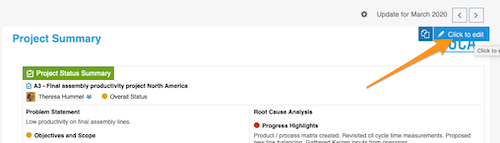
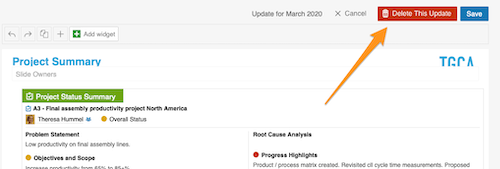
Click your topic and then the blue Click to edit button in the upper right corner. Then select Delete this update and click Save.
Please note: this removes only the topic’s CONTENT, not the whole topic. To learn how to delete the whole topic, follow this link.
Create a new update
Copy the previous update
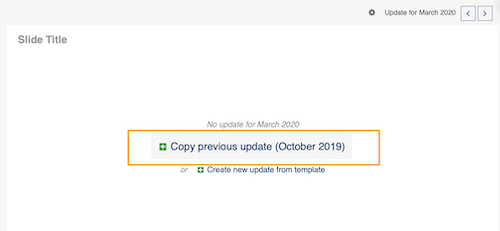
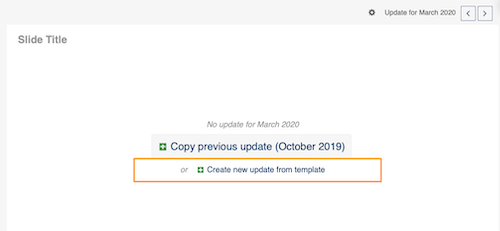
After you delete an update, you have two options to create a new one. Copy previous update copies the most recent update (the topic with all its content): click the green plus button.
Create a new update from the template
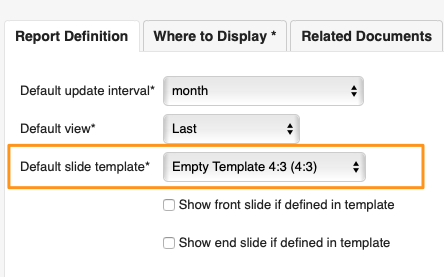
Create new update from template copies only your template, WITHOUT the content: click the green plus button. Your template is set up on the Report Definition tab in your report settings.
Please note: you can copy the previous update or create a new update from the template only if your report is not set up to create slides automatically. If your report is set up to do so, follow this link to learn how to copy updates (slides) to another report or a different time period (day, week…).
Den Inhalt eines Themas können Sie auf zwei Arten löschen: nur bestimmte Widgets oder den gesamten Inhalt des Themas.
Inhalt löschen
Bestimmte Widgets löschen
Klicken Sie auf das Widget, dann auf die Schaltfläche X oben rechts im Widget und anschließend auf Speichern.
Den gesamten Inhalt des Themas löschen
Klicken Sie auf Ihr Thema und dann oben rechts auf die blaue Schaltfläche Zum Bearbeiten klicken. Wählen Sie anschließend Dieses Update löschen und klicken Sie auf Speichern.
Hinweis: Damit wird nur der INHALT des Themas entfernt, nicht das ganze Thema. Wie Sie das ganze Thema löschen, lesen Sie hier.
Ein neues Update erstellen
Vorheriges Update kopieren
Nachdem Sie ein Update gelöscht haben, können Sie auf zwei Arten ein neues erstellen. Vorheriges Update kopieren kopiert das letzte Update (das Thema mit seinem gesamten Inhalt): Klicken Sie auf die grüne Plus-Schaltfläche.
Neues Update aus der Vorlage erstellen
Neues Update aus Vorlage erstellen kopiert nur Ihre Vorlage, OHNE Inhalt: Klicken Sie auf die grüne Plus-Schaltfläche. Ihre Vorlage richten Sie auf der Registerkarte Berichtsdefinition in den Berichtseinstellungen ein.
Hinweis: Das vorherige Update kopieren oder ein neues Update aus der Vorlage erstellen können Sie nur, wenn Ihr Bericht nicht so eingerichtet ist, dass er Folien automatisch erstellt. Ist er so eingerichtet, lesen Sie hier, wie Sie Updates (Folien) in einen anderen Bericht oder einen anderen Zeitraum (Tag, Woche …) kopieren.
Brauchen Sie weitere Hilfe?
Schreiben Sie uns. An Werktagen antworten wir meist innerhalb einer Stunde.