Cómo eliminar el contenido de un tema
Traducción automática del inglés. Se muestra el original en inglés.
You can delete a topic’s content in two ways: delete only specific widgets, or delete the topic’s full content.
Delete the content
Delete specific widgets
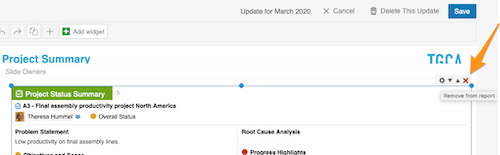
Click the widget, click the X button in its upper right corner and then click Save.
Delete the full content of the topic
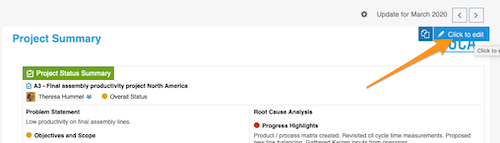
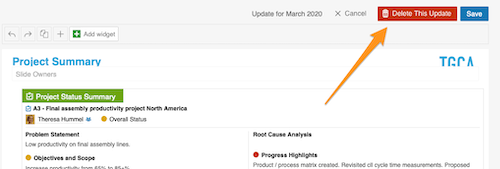
Click your topic and then the blue Click to edit button in the upper right corner. Then select Delete this update and click Save.
Please note: this removes only the topic’s CONTENT, not the whole topic. To learn how to delete the whole topic, follow this link.
Create a new update
Copy the previous update
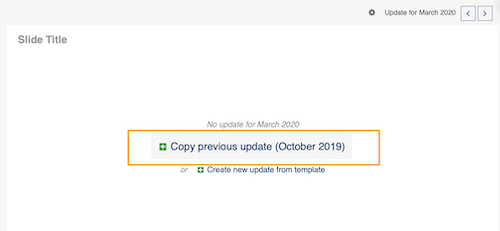
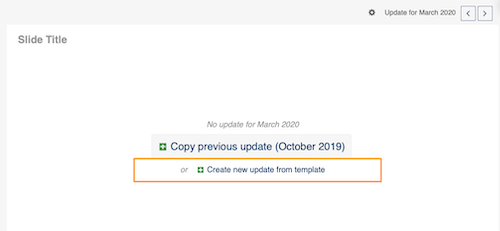
After you delete an update, you have two options to create a new one. Copy previous update copies the most recent update (the topic with all its content): click the green plus button.
Create a new update from the template
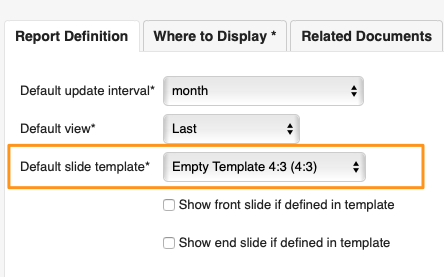
Create new update from template copies only your template, WITHOUT the content: click the green plus button. Your template is set up on the Report Definition tab in your report settings.
Please note: you can copy the previous update or create a new update from the template only if your report is not set up to create slides automatically. If your report is set up to do so, follow this link to learn how to copy updates (slides) to another report or a different time period (day, week…).
Puede eliminar el contenido de un tema de dos formas: eliminar solo algunos widgets o eliminar todo el contenido del tema.
Eliminar el contenido
Eliminar widgets concretos
Haga clic en el widget, haga clic en el botón X de su esquina superior derecha y luego haga clic en Guardar.
Eliminar todo el contenido del tema
Haga clic en el tema y luego en el botón azul Clic para editar en la esquina superior derecha. Después seleccione Eliminar esta actualización y haga clic en Guardar.
Tenga en cuenta: esto elimina solo el CONTENIDO del tema, no el tema completo. Para saber cómo eliminar el tema completo, siga este enlace.
Crear una nueva actualización
Copiar la actualización anterior
Después de eliminar una actualización, tiene dos opciones para crear una nueva. Copiar actualización anterior copia la actualización más reciente (el tema con todo su contenido): haga clic en el botón verde con el signo más.
Crear una nueva actualización desde la plantilla
Crear nueva actualización desde plantilla copia solo la plantilla, SIN el contenido: haga clic en el botón verde con el signo más. La plantilla se configura en la pestaña Definición del informe de la configuración del informe.
Tenga en cuenta: solo puede copiar la actualización anterior o crear una nueva desde la plantilla si su informe no está configurado para crear diapositivas automáticamente. Si lo está, siga este enlace para saber cómo copiar actualizaciones (diapositivas) a otro informe o a otro período (día, semana…).
¿Necesita más ayuda?
Escríbanos. En días laborables solemos responder en menos de una hora.