如何删除主题内容
本文由英文机器翻译。 当前显示英文原文。
You can delete a topic’s content in two ways: delete only specific widgets, or delete the topic’s full content.
Delete the content
Delete specific widgets
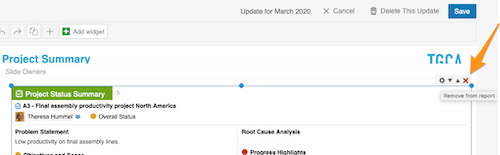
Click the widget, click the X button in its upper right corner and then click Save.
Delete the full content of the topic
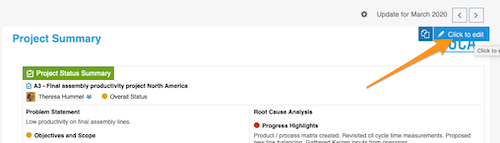
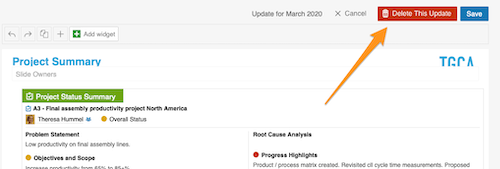
Click your topic and then the blue Click to edit button in the upper right corner. Then select Delete this update and click Save.
Please note: this removes only the topic’s CONTENT, not the whole topic. To learn how to delete the whole topic, follow this link.
Create a new update
Copy the previous update
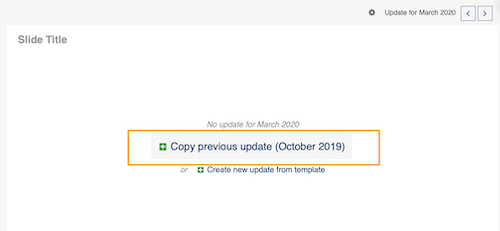
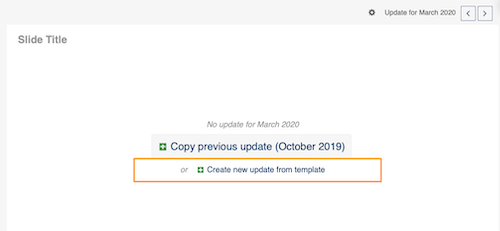
After you delete an update, you have two options to create a new one. Copy previous update copies the most recent update (the topic with all its content): click the green plus button.
Create a new update from the template
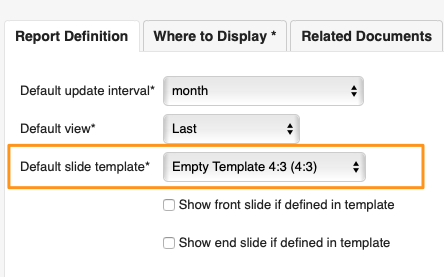
Create new update from template copies only your template, WITHOUT the content: click the green plus button. Your template is set up on the Report Definition tab in your report settings.
Please note: you can copy the previous update or create a new update from the template only if your report is not set up to create slides automatically. If your report is set up to do so, follow this link to learn how to copy updates (slides) to another report or a different time period (day, week…).
删除主题内容有两种方式:只删除特定小部件,或删除主题的全部内容。
删除内容
删除特定小部件
点击小部件,点击其右上角的 X 按钮,然后点击 保存。
删除主题的全部内容
点击主题,然后点击右上角蓝色的 点击编辑 按钮。接着选择 删除此更新,再点击 保存。
请注意:此操作只删除主题的内容,不会删除整个主题。如需了解如何删除整个主题,请点击此链接。
创建新更新
复制上次更新
删除更新后,有两种方式创建新更新。复制上次更新 会复制最近一次更新(包含全部内容的主题):点击绿色加号按钮。
从模板创建新更新
从模板创建新更新 只复制模板,不含任何内容:点击绿色加号按钮。模板在报告设置的 报告定义 选项卡中设置。
请注意:只有当报告未设置为自动创建幻灯片时,才能复制上次更新或从模板创建新更新。如果报告已设置为自动创建幻灯片,请点击此链接,了解如何将更新(幻灯片)复制到其他报告或其他时间周期(日、周等)。
还需要帮助吗?
请给我们留言。工作日我们通常会在一小时内回复。