Como excluir o conteúdo de um tópico
Tradução automática do inglês. Exibindo o original em inglês.
You can delete a topic’s content in two ways: delete only specific widgets, or delete the topic’s full content.
Delete the content
Delete specific widgets
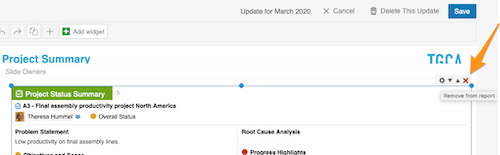
Click the widget, click the X button in its upper right corner and then click Save.
Delete the full content of the topic
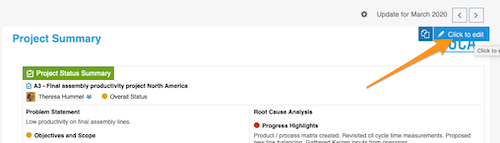
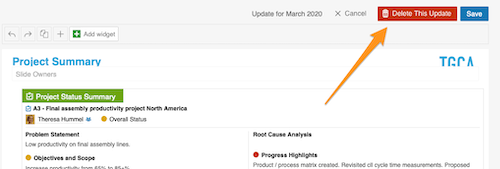
Click your topic and then the blue Click to edit button in the upper right corner. Then select Delete this update and click Save.
Please note: this removes only the topic’s CONTENT, not the whole topic. To learn how to delete the whole topic, follow this link.
Create a new update
Copy the previous update
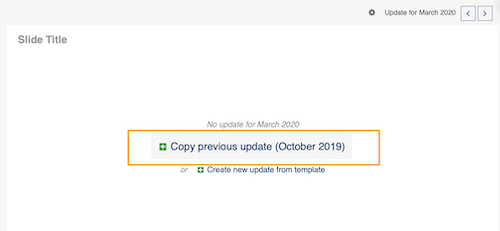
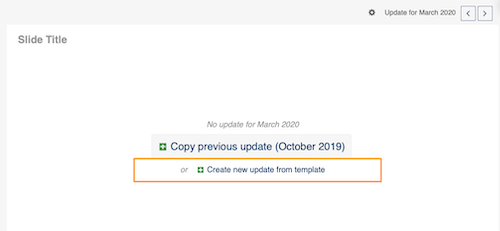
After you delete an update, you have two options to create a new one. Copy previous update copies the most recent update (the topic with all its content): click the green plus button.
Create a new update from the template
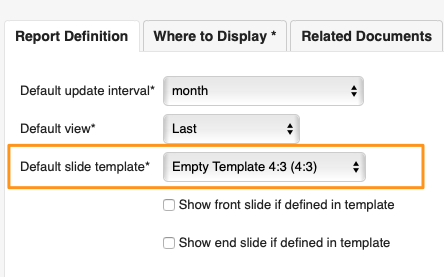
Create new update from template copies only your template, WITHOUT the content: click the green plus button. Your template is set up on the Report Definition tab in your report settings.
Please note: you can copy the previous update or create a new update from the template only if your report is not set up to create slides automatically. If your report is set up to do so, follow this link to learn how to copy updates (slides) to another report or a different time period (day, week…).
Há duas formas de excluir o conteúdo de um tópico: excluir só alguns widgets ou excluir todo o conteúdo do tópico.
Exclua o conteúdo
Exclua widgets específicos
Clique no widget, clique no botão X no canto superior direito dele e depois clique em Salvar.
Exclua todo o conteúdo do tópico
Clique no tópico e depois no botão azul Clique para editar no canto superior direito. Em seguida, selecione Excluir esta atualização e clique em Salvar.
Observação: isso remove só o CONTEÚDO do tópico, não o tópico inteiro. Para saber como excluir o tópico inteiro, acesse este link.
Crie uma nova atualização
Copie a atualização anterior
Depois de excluir uma atualização, há duas opções para criar uma nova. Copiar atualização anterior copia a atualização mais recente (o tópico com todo o conteúdo): clique no botão verde de mais.
Crie uma nova atualização a partir do modelo
Criar nova atualização a partir do modelo copia só o modelo, SEM o conteúdo: clique no botão verde de mais. O modelo é definido na aba Definição do relatório, nas configurações do relatório.
Observação: só é possível copiar a atualização anterior ou criar uma nova a partir do modelo se o relatório não estiver configurado para criar slides automaticamente. Se estiver, acesse este link para saber como copiar atualizações (slides) para outro relatório ou para outro período (dia, semana…).
Precisa de mais ajuda?
Escreva para nós. Em dias úteis, costumamos responder em até uma hora.