Ako odstrániť obsah témy
Strojový preklad z angličtiny. Zobrazený je anglický originál.
You can delete a topic’s content in two ways: delete only specific widgets, or delete the topic’s full content.
Delete the content
Delete specific widgets
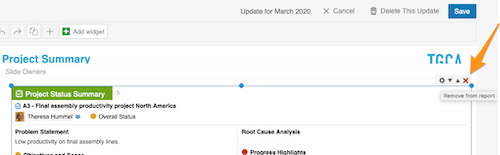
Click the widget, click the X button in its upper right corner and then click Save.
Delete the full content of the topic
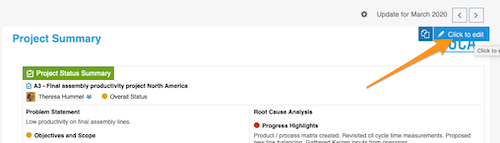
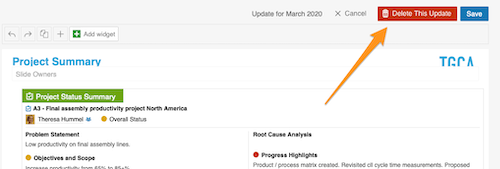
Click your topic and then the blue Click to edit button in the upper right corner. Then select Delete this update and click Save.
Please note: this removes only the topic’s CONTENT, not the whole topic. To learn how to delete the whole topic, follow this link.
Create a new update
Copy the previous update
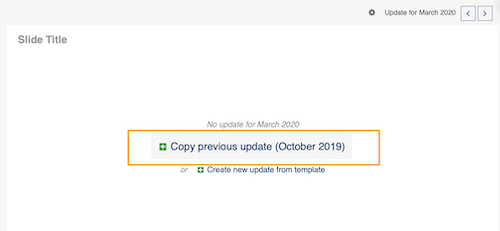
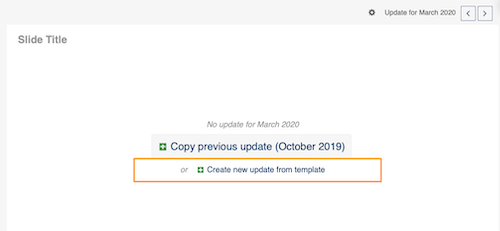
After you delete an update, you have two options to create a new one. Copy previous update copies the most recent update (the topic with all its content): click the green plus button.
Create a new update from the template
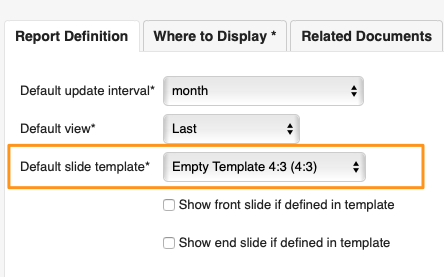
Create new update from template copies only your template, WITHOUT the content: click the green plus button. Your template is set up on the Report Definition tab in your report settings.
Please note: you can copy the previous update or create a new update from the template only if your report is not set up to create slides automatically. If your report is set up to do so, follow this link to learn how to copy updates (slides) to another report or a different time period (day, week…).
Obsah témy môžete odstrániť dvoma spôsobmi: odstrániť iba konkrétne widgety alebo celý obsah témy.
Odstránenie obsahu
Odstránenie konkrétnych widgetov
Kliknite na widget, potom na tlačidlo X v jeho pravom hornom rohu a nakoniec na Uložiť.
Odstránenie celého obsahu témy
Kliknite na tému a potom na modré tlačidlo Kliknutím upravte v pravom hornom rohu. Potom zvoľte Odstrániť túto aktualizáciu a kliknite na Uložiť.
Upozornenie: týmto odstránite iba OBSAH témy, nie celú tému. Ako odstrániť celú tému, nájdete na tomto odkaze.
Vytvorenie novej aktualizácie
Kopírovanie predchádzajúcej aktualizácie
Po odstránení aktualizácie máte dve možnosti, ako vytvoriť novú. Kopírovať predchádzajúcu aktualizáciu skopíruje najnovšiu aktualizáciu (tému s celým obsahom): kliknite na zelené tlačidlo plus.
Vytvorenie novej aktualizácie zo šablóny
Vytvoriť novú aktualizáciu zo šablóny skopíruje iba šablónu, BEZ obsahu: kliknite na zelené tlačidlo plus. Šablónu nastavíte na karte Definícia reportu v nastaveniach reportu.
Upozornenie: predchádzajúcu aktualizáciu môžete skopírovať alebo vytvoriť novú aktualizáciu zo šablóny iba vtedy, ak report nie je nastavený na automatické vytváranie snímok. Ak nastavený je, pozrite si tento odkaz, ako kopírovať aktualizácie (snímky) do iného reportu alebo iného obdobia (deň, týždeň…).
Potrebujete ďalšiu pomoc?
Napíšte nám. V pracovné dni zvyčajne odpovedáme do hodiny.