Jak przedłużyć ważność udostępnienia dashboardów, list działań, raportów i innych dokumentów TeamGuru
Tłumaczenie maszynowe z angielskiego. Wyświetlany jest oryginał po angielsku.
To share TeamGuru documents (such as Metric Dashboards, Action Lists, RCCA, QA, Standardized Meetings and Reports), you have to set a date until which the sharing is valid. You can set it at the document level or with the mass function Document Sharing.
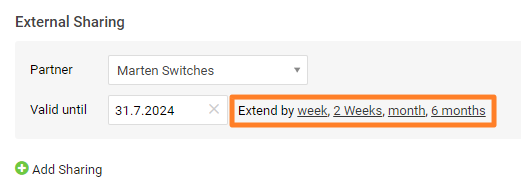
Setting the validity date in a particular document is described in How to share the document with an external partner.
Extend the validity of several documents
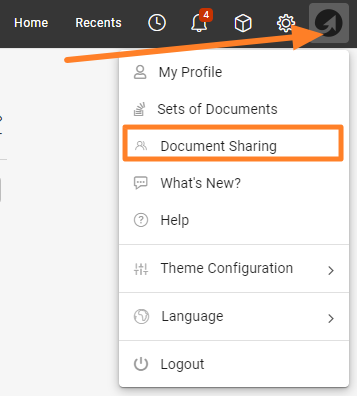
Open Document Sharing
If you need to extend the validity date of several documents at the same time, use the mass function Document Sharing, available under your user photo (icon).
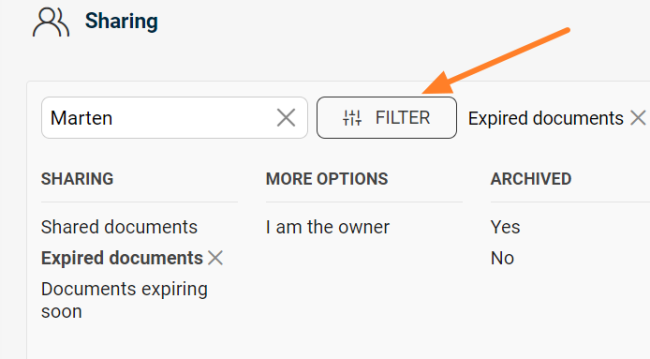
Filter the documents
Use the filter to get the list of documents whose validity needs to be extended.
Show the mass actions
Scroll down below the list of documents to the Show Mass Actions button.
Select the documents and the change
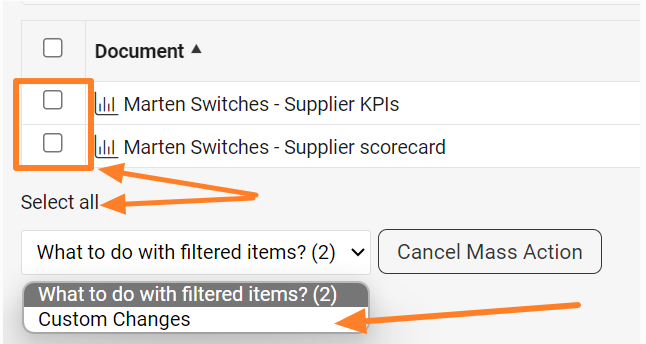
Select all documents, or only particular ones using the checkboxes. In the dropdown menu, choose Custom Changes.
Edit partners in bulk
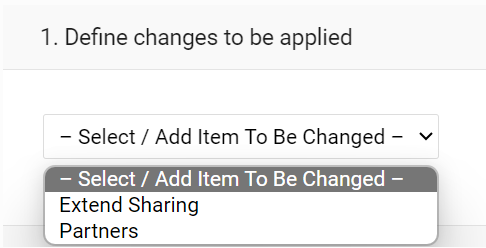
Here you can also mass edit the partners (remove or add them).
Apply the mass change
Once you have made the change, click the Apply Mass Change button in the top right corner.

Aby udostępnić dokumenty TeamGuru (np. dashboardy KPI, listy działań, RCCA, QA, standaryzowane spotkania i raporty), musisz ustawić datę, do której udostępnienie jest ważne. Możesz ją ustawić w samym dokumencie albo za pomocą funkcji masowej Udostępnianie dokumentów.
Ustawianie daty ważności w konkretnym dokumencie opisuje artykuł Jak udostępnić dokument partnerowi zewnętrznemu.
Przedłuż ważność kilku dokumentów
Otwórz udostępnianie dokumentów
Jeśli chcesz jednocześnie przedłużyć datę ważności kilku dokumentów, użyj funkcji masowej Udostępnianie dokumentów dostępnej pod twoim zdjęciem użytkownika (ikoną).
Przefiltruj dokumenty
Za pomocą filtra wyświetl listę dokumentów, których ważność trzeba przedłużyć.
Pokaż akcje masowe
Przewiń w dół pod listę dokumentów do przycisku Pokaż akcje masowe.
Wybierz dokumenty i zmianę
Zaznacz wszystkie dokumenty albo tylko wybrane za pomocą pól wyboru. Z menu rozwijanego wybierz Zmiany niestandardowe.
Edytuj partnerów zbiorczo
Tutaj możesz też masowo edytować partnerów (usuwać ich lub dodawać).
Zastosuj zmianę masową
Po wprowadzeniu zmiany kliknij przycisk Zastosuj zmianę masową w prawym górnym rogu.
Potrzebujesz dalszej pomocy?
Napisz do nas. W dni robocze zwykle odpowiadamy w ciągu godziny.