Ako predĺžiť platnosť zdieľania dashboardov, akčných zoznamov, reportov a ďalších dokumentov TeamGuru
Strojový preklad z angličtiny. Zobrazený je anglický originál.
To share TeamGuru documents (such as Metric Dashboards, Action Lists, RCCA, QA, Standardized Meetings and Reports), you have to set a date until which the sharing is valid. You can set it at the document level or with the mass function Document Sharing.
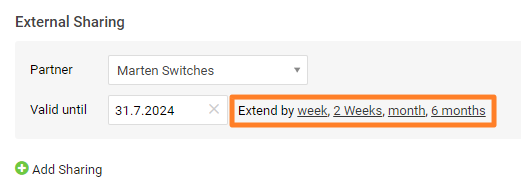
Setting the validity date in a particular document is described in How to share the document with an external partner.
Extend the validity of several documents
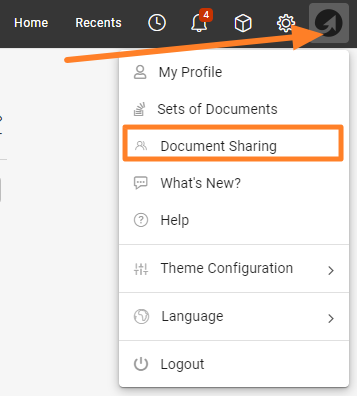
Open Document Sharing
If you need to extend the validity date of several documents at the same time, use the mass function Document Sharing, available under your user photo (icon).
Filter the documents
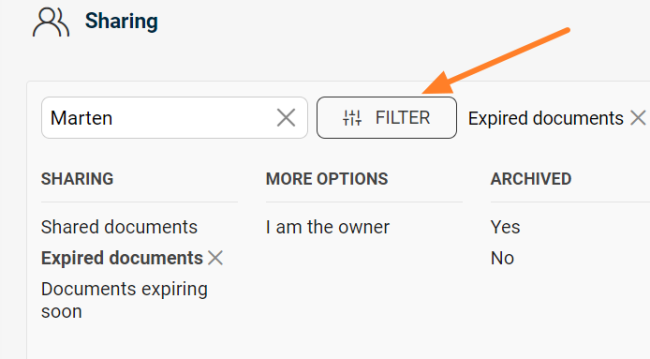
Use the filter to get the list of documents whose validity needs to be extended.
Show the mass actions
Scroll down below the list of documents to the Show Mass Actions button.
Select the documents and the change
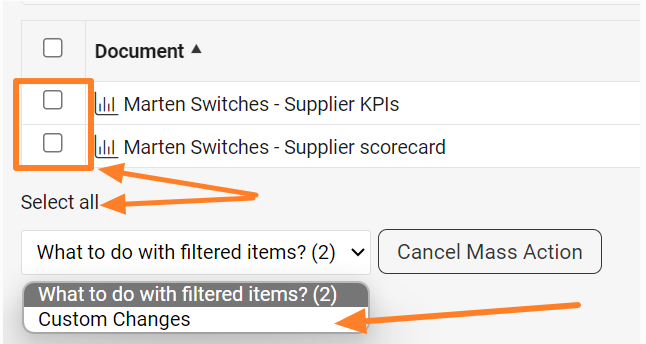
Select all documents, or only particular ones using the checkboxes. In the dropdown menu, choose Custom Changes.
Edit partners in bulk
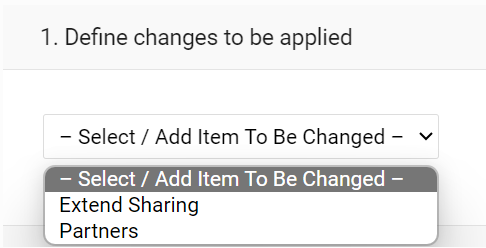
Here you can also mass edit the partners (remove or add them).
Apply the mass change
Once you have made the change, click the Apply Mass Change button in the top right corner.

Ak chcete zdieľať dokumenty TeamGuru (napríklad KPI dashboardy, Akčné zoznamy, RCCA, Alerty kvality, Štandardizované porady a Reporty), musíte nastaviť dátum, do ktorého zdieľanie platí. Nastavíte ho priamo v dokumente alebo hromadne cez funkciu Zdieľanie dokumentov.
Nastavenie dátumu platnosti v konkrétnom dokumente popisuje článok Ako zdieľať dokument s externým partnerom.
Predĺžte platnosť viacerých dokumentov
Otvorte Zdieľanie dokumentov
Ak potrebujete predĺžiť dátum platnosti viacerých dokumentov naraz, použite hromadnú funkciu Zdieľanie dokumentov, ktorú nájdete pod svojou fotkou používateľa (ikonou).
Vyfiltrujte dokumenty
Pomocou filtra si zobrazte zoznam dokumentov, ktorým treba predĺžiť platnosť.
Zobrazte hromadné akcie
Posuňte sa pod zoznam dokumentov k tlačidlu Zobraziť hromadné akcie.
Vyberte dokumenty a zmenu
Vyberte všetky dokumenty alebo len niektoré pomocou zaškrtávacích políčok. V rozbaľovacej ponuke zvoľte Vlastné zmeny.
Hromadne upravte partnerov
Tu môžete hromadne upraviť aj partnerov (odobrať ich alebo pridať).
Použite hromadnú zmenu
Po vykonaní zmeny kliknite na tlačidlo Použiť hromadnú zmenu v pravom hornom rohu.
Potrebujete ďalšiu pomoc?
Napíšte nám. V pracovné dni zvyčajne odpovedáme do hodiny.