如何延长仪表板、行动清单、报告及其他TeamGuru文档的共享有效期
本文由英文机器翻译。 当前显示英文原文。
To share TeamGuru documents (such as Metric Dashboards, Action Lists, RCCA, QA, Standardized Meetings and Reports), you have to set a date until which the sharing is valid. You can set it at the document level or with the mass function Document Sharing.
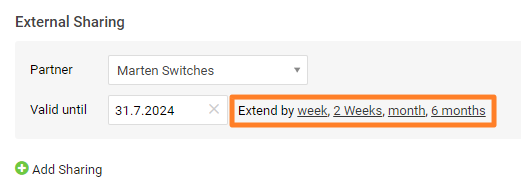
Setting the validity date in a particular document is described in How to share the document with an external partner.
Extend the validity of several documents
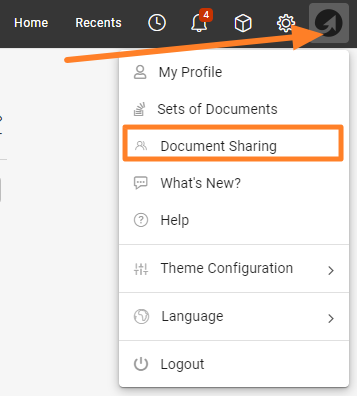
Open Document Sharing
If you need to extend the validity date of several documents at the same time, use the mass function Document Sharing, available under your user photo (icon).
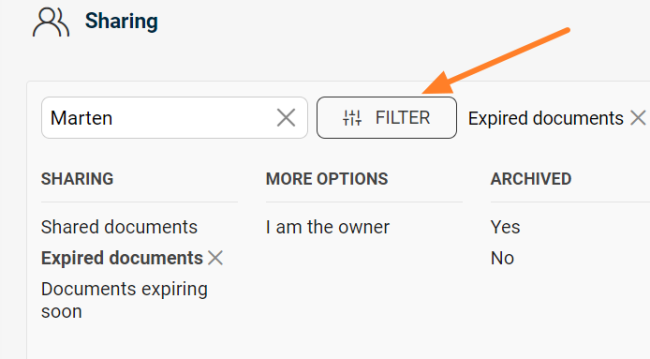
Filter the documents
Use the filter to get the list of documents whose validity needs to be extended.
Show the mass actions
Scroll down below the list of documents to the Show Mass Actions button.

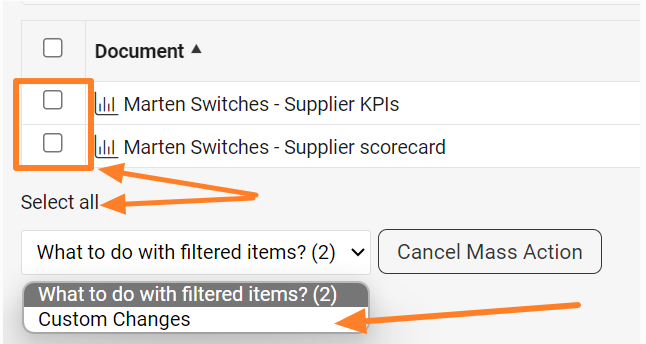
Select the documents and the change
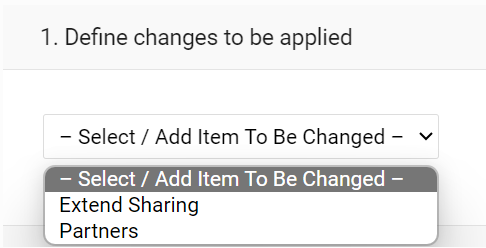
Select all documents, or only particular ones using the checkboxes. In the dropdown menu, choose Custom Changes.
Edit partners in bulk
Here you can also mass edit the partners (remove or add them).
Apply the mass change
Once you have made the change, click the Apply Mass Change button in the top right corner.

共享TeamGuru文档(例如指标仪表板、行动清单、RCCA、质量警报、标准化会议和报告)时,必须设置共享的有效截止日期。您可以在单个文档中设置,也可以使用批量功能文档共享进行设置。
在单个文档中设置有效期的方法,请参阅如何与外部合作伙伴共享文档。
延长多个文档的有效期
打开文档共享
如果需要同时延长多个文档的有效期,请使用批量功能文档共享,该功能位于您的用户头像(图标)下。
筛选文档
使用筛选功能,列出需要延长有效期的文档。
显示批量操作
在文档列表下方向下滚动,找到显示批量操作按钮。
选择文档和更改内容
选择所有文档,或通过复选框只选择部分文档。在下拉菜单中选择自定义更改。
批量编辑合作伙伴
在这里,您还可以批量编辑合作伙伴(删除或添加)。
应用批量更改
完成更改后,点击右上角的应用批量更改按钮。
还需要帮助吗?
请给我们留言。工作日我们通常会在一小时内回复。