Como adicionar etiquetas a documentos padrão
Tradução automática do inglês. Exibindo o original em inglês.
Mark your related and standard documents with the same label, and search across all documents quickly and easily.
Video Guide (text instructions are below the video)
To create a new label, you have to be set up with a sufficient role. There are two ways to create a new label: in the system settings, or directly in a document in one step.
Create a label in the system settings
Open the label settings
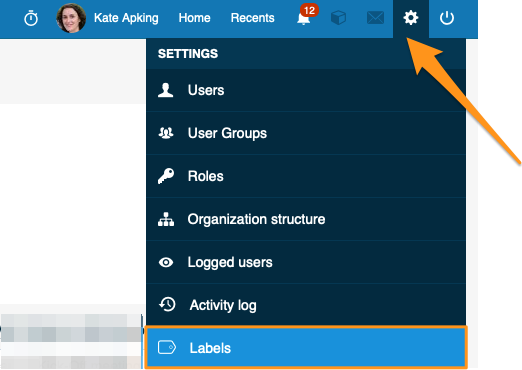
Click the settings button in the upper right corner of your TeamGuru page and choose Labels from the submenu.
Add a new label
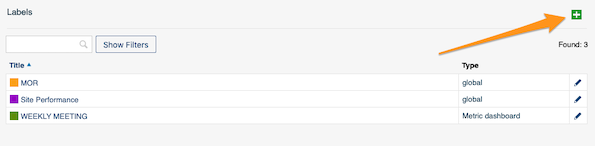
Create a new label by clicking the green plus button.
Set the title, scope and color
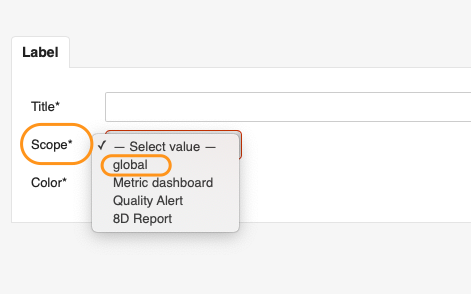
Fill in the Title, Scope and Color. In the scope, you can choose whether the label applies only to Metric dashboards, Quality alerts or 8D reports, or select Global to use it in all three modules.
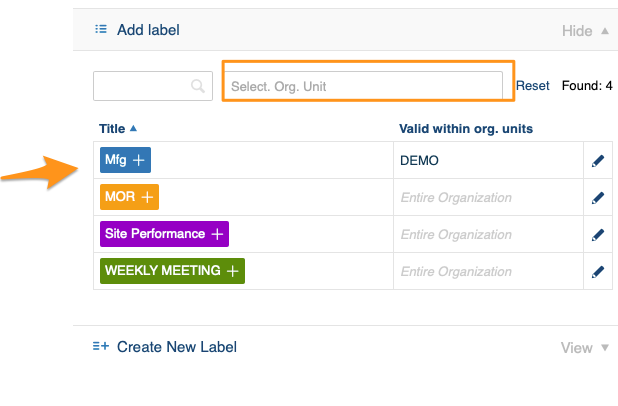
Choose the locations
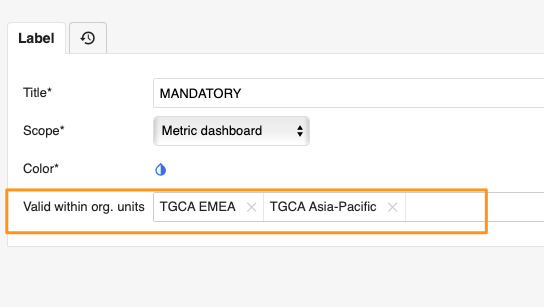
You can also choose the locations (org. unit folders) where the label will be primarily used.
Find the label in the filter
Once the label is added to at least one document, it is displayed in the document filter under the selected org. unit folders.
The exception is a label that already existed in the system and was used for a document in a different location before you selected the locations. Such a label is displayed under that other folder too.
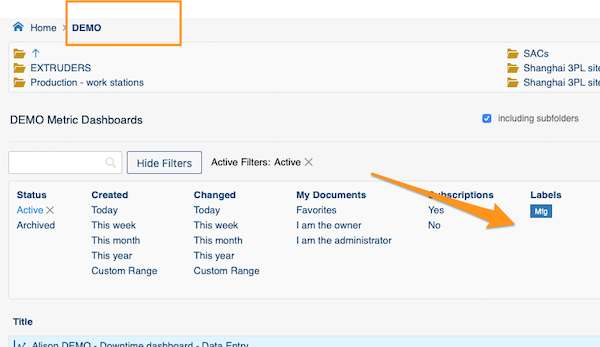
Create and add a label in one step
Open the document settings
Go to the document settings by clicking the edit pencil button.

Create the label and select it
Create a new label by clicking the green plus button Create New Label, then select the label for your document.
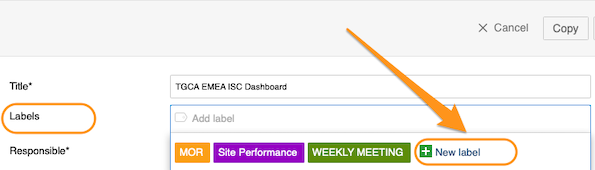
Add a label to your document
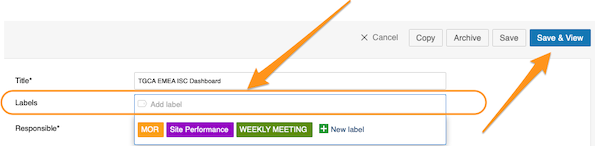
Select labels in the document settings
This works the same way as creating and adding a label in one step. Go to your document settings, click into the Labels field and choose from the available options. Click Save or Save & View once you have made your selection.
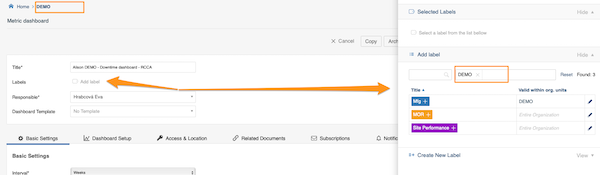
Labels offered for the document location
When you add labels to your document, only the labels for that location are offered: the system automatically sets the location in the filter to the document’s location.
Use labels from other locations
Even though a label’s location is specified, users from other locations can still use it too. They just delete the location from the filter, and all labels created and available in the system are shown.
Search documents by labels
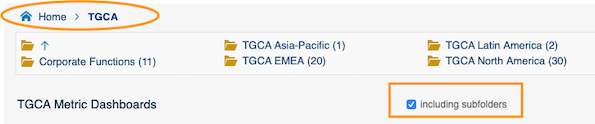
Select the folder
Select the folder where you want to search for your document. Don’t forget to tick the Including subfolders checkbox if you want to see documents from all the subfolders.
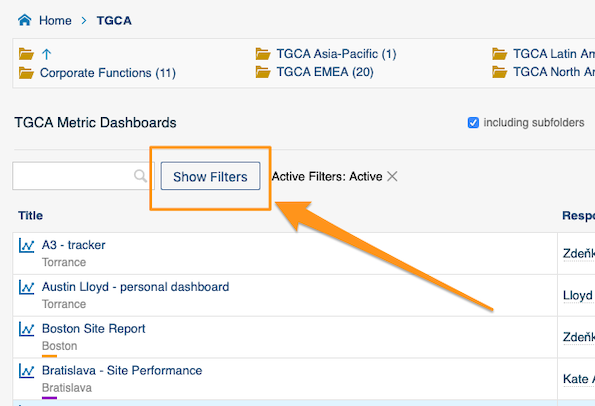
Show the filters
Click Show Filters next to the search field.
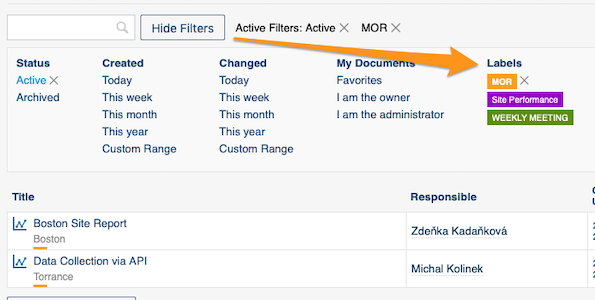
Select your label
Select your label in the filter.
Related article: How to preselect labels in your project
Marque seus documentos relacionados e padrão com a mesma etiqueta e pesquise em todos os documentos de forma rápida e fácil.
Guia em vídeo (as instruções em texto estão abaixo do vídeo)
Para criar uma nova etiqueta, você precisa ter uma função com permissões suficientes. Há duas formas de criar uma etiqueta: nas configurações do sistema ou diretamente em um documento, em um só passo.
Crie uma etiqueta nas configurações do sistema
Abra as configurações de etiquetas
Clique no botão de configurações no canto superior direito da página do TeamGuru e escolha Etiquetas no submenu.
Adicione uma nova etiqueta
Crie uma nova etiqueta clicando no botão verde de mais.
Defina o título, o escopo e a cor
Preencha Título, Escopo e Cor. No escopo, você escolhe se a etiqueta vale só para Dashboards de KPI, Alertas de qualidade ou Relatórios 8D, ou seleciona Global para usá-la nos três módulos.
Escolha os locais
Você também pode escolher os locais (pastas de unidades org.) em que a etiqueta será usada principalmente.
Encontre a etiqueta no filtro
Quando a etiqueta é adicionada a pelo menos um documento, ela aparece no filtro de documentos nas pastas de unidades org. selecionadas.
A exceção é uma etiqueta que já existia no sistema e foi usada em um documento de outro local antes de você selecionar os locais. Essa etiqueta também aparece na outra pasta.
Crie e adicione uma etiqueta em um só passo
Abra as configurações do documento
Acesse as configurações do documento clicando no botão de lápis de edição.
Crie a etiqueta e selecione-a
Crie uma nova etiqueta clicando no botão verde de mais Criar nova etiqueta e depois selecione a etiqueta para o documento.
Adicione uma etiqueta ao documento
Selecione as etiquetas nas configurações do documento
Funciona da mesma forma que criar e adicionar uma etiqueta em um só passo. Acesse as configurações do documento, clique no campo Etiquetas e escolha entre as opções disponíveis. Depois de selecionar, clique em Salvar ou Salvar e visualizar.
Etiquetas oferecidas para o local do documento
Ao adicionar etiquetas ao documento, só aparecem as etiquetas daquele local: o sistema define automaticamente no filtro o local do documento.
Use etiquetas de outros locais
Mesmo que a etiqueta tenha um local definido, usuários de outros locais também podem usá-la. Basta apagar o local do filtro para ver todas as etiquetas criadas e disponíveis no sistema.
Pesquise documentos por etiquetas
Selecione a pasta
Selecione a pasta em que deseja procurar o documento. Não se esqueça de marcar a caixa Incluindo subpastas se quiser ver os documentos de todas as subpastas.
Mostre os filtros
Clique em Mostrar filtros ao lado do campo de pesquisa.
Selecione a etiqueta
Selecione a etiqueta no filtro.
Artigo relacionado: Como pré-selecionar etiquetas no seu projeto
Precisa de mais ajuda?
Escreva para nós. Em dias úteis, costumamos responder em até uma hora.