Cómo agregar etiquetas a los documentos estándar
Traducción automática del inglés. Se muestra el original en inglés.
Mark your related and standard documents with the same label, and search across all documents quickly and easily.
Video Guide (text instructions are below the video)
To create a new label, you have to be set up with a sufficient role. There are two ways to create a new label: in the system settings, or directly in a document in one step.
Create a label in the system settings
Open the label settings
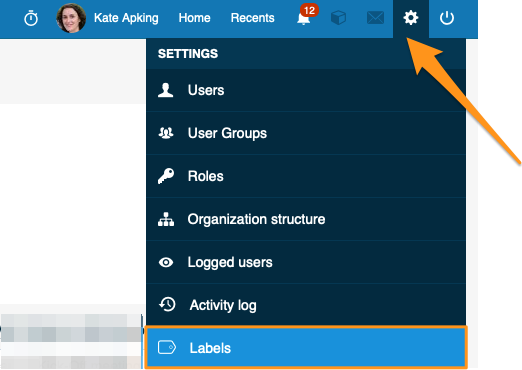
Click the settings button in the upper right corner of your TeamGuru page and choose Labels from the submenu.
Add a new label
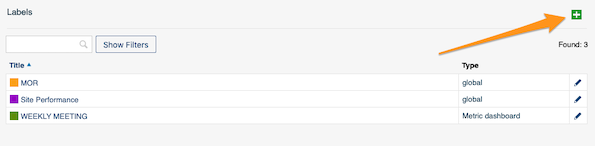
Create a new label by clicking the green plus button.
Set the title, scope and color
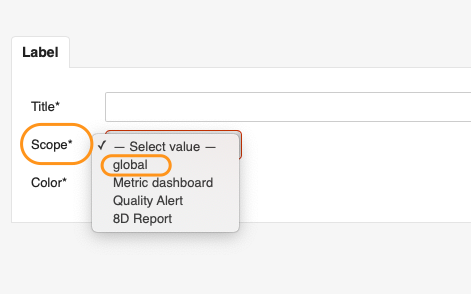
Fill in the Title, Scope and Color. In the scope, you can choose whether the label applies only to Metric dashboards, Quality alerts or 8D reports, or select Global to use it in all three modules.
Choose the locations
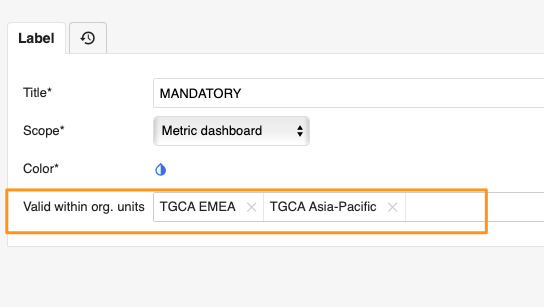
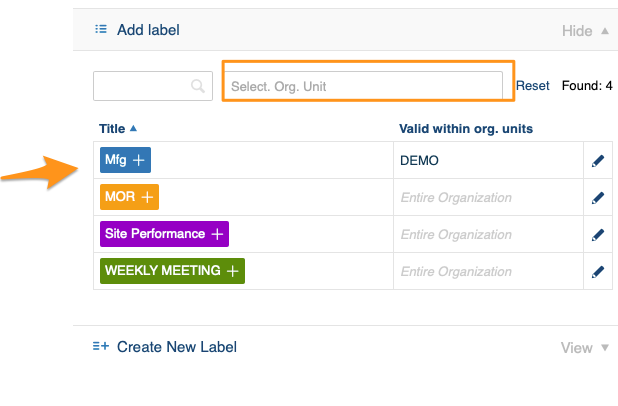
You can also choose the locations (org. unit folders) where the label will be primarily used.
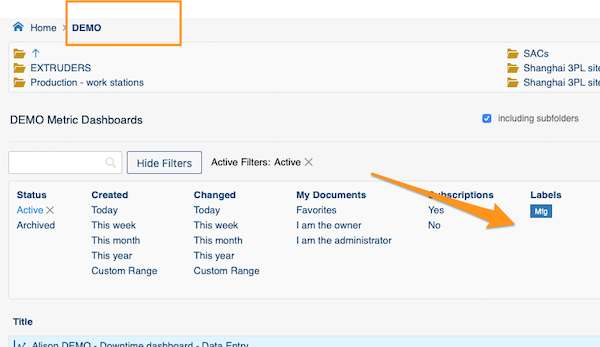
Find the label in the filter
Once the label is added to at least one document, it is displayed in the document filter under the selected org. unit folders.
The exception is a label that already existed in the system and was used for a document in a different location before you selected the locations. Such a label is displayed under that other folder too.
Create and add a label in one step
Open the document settings
Go to the document settings by clicking the edit pencil button.

Create the label and select it
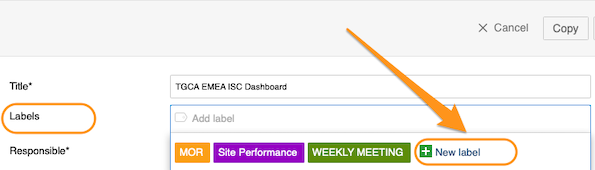
Create a new label by clicking the green plus button Create New Label, then select the label for your document.
Add a label to your document
Select labels in the document settings
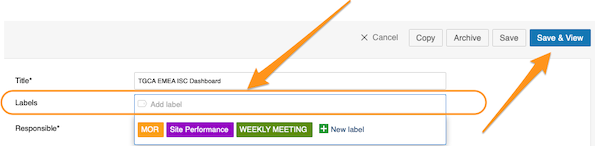
This works the same way as creating and adding a label in one step. Go to your document settings, click into the Labels field and choose from the available options. Click Save or Save & View once you have made your selection.
Labels offered for the document location
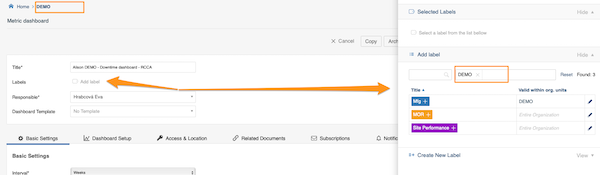
When you add labels to your document, only the labels for that location are offered: the system automatically sets the location in the filter to the document’s location.
Use labels from other locations
Even though a label’s location is specified, users from other locations can still use it too. They just delete the location from the filter, and all labels created and available in the system are shown.
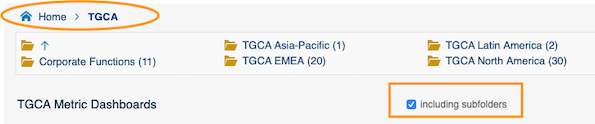
Search documents by labels
Select the folder
Select the folder where you want to search for your document. Don’t forget to tick the Including subfolders checkbox if you want to see documents from all the subfolders.
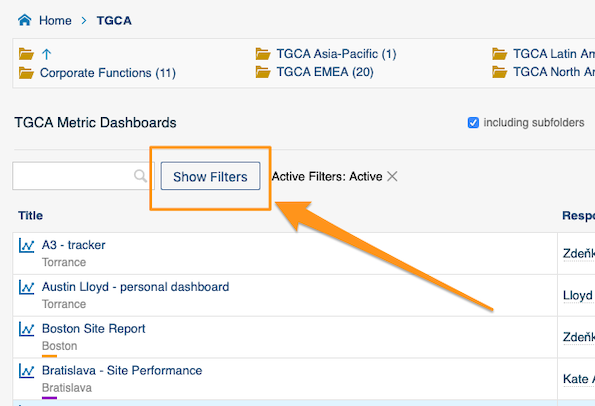
Show the filters
Click Show Filters next to the search field.
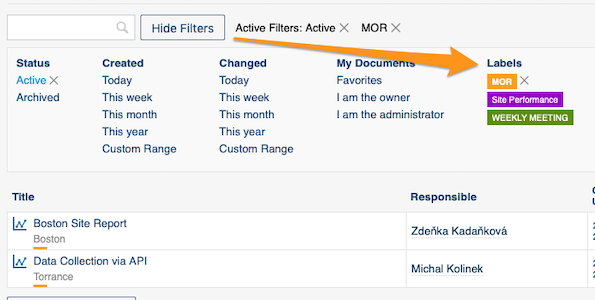
Select your label
Select your label in the filter.
Related article: How to preselect labels in your project
Marque sus documentos relacionados y estándar con la misma etiqueta y busque en todos los documentos de forma rápida y sencilla.
Video (las instrucciones escritas están debajo del video)
Para crear una etiqueta, debe tener asignado un rol con permisos suficientes. Hay dos formas de crear una etiqueta: en la configuración del sistema o directamente en un documento, en un solo paso.
Crear una etiqueta en la configuración del sistema
Abra la configuración de etiquetas
Haga clic en el botón de configuración en la esquina superior derecha de TeamGuru y elija Etiquetas en el submenú.
Agregue una etiqueta
Cree una etiqueta haciendo clic en el botón verde con el signo más.
Defina el título, el alcance y el color
Complete el Título, el Alcance y el Color. En el alcance puede elegir si la etiqueta se aplica solo a los dashboards de KPI, a las alertas de calidad o a los informes 8D, o seleccionar Global para usarla en los tres módulos.
Elija las ubicaciones
También puede elegir las ubicaciones (carpetas de unidades organizativas) donde se usará principalmente la etiqueta.
Busque la etiqueta en el filtro
En cuanto la etiqueta se agrega al menos a un documento, aparece en el filtro de documentos bajo las carpetas de unidades organizativas seleccionadas.
La excepción es una etiqueta que ya existía en el sistema y se usó en un documento de otra ubicación antes de que usted seleccionara las ubicaciones. Esa etiqueta aparece también bajo esa otra carpeta.
Crear y agregar una etiqueta en un solo paso
Abra la configuración del documento
Abra la configuración del documento haciendo clic en el botón del lápiz de edición.
Cree la etiqueta y selecciónela
Cree una etiqueta haciendo clic en el botón verde con el signo más Crear nueva etiqueta y luego selecciónela para su documento.
Agregar una etiqueta a un documento
Seleccione las etiquetas en la configuración del documento
Funciona igual que crear y agregar una etiqueta en un solo paso. Vaya a la configuración del documento, haga clic en el campo Etiquetas y elija entre las opciones disponibles. Cuando termine, haga clic en Guardar o en Guardar y ver.
Etiquetas disponibles para la ubicación del documento
Al agregar etiquetas a un documento, solo se ofrecen las etiquetas de esa ubicación: el sistema ajusta automáticamente la ubicación del filtro a la ubicación del documento.
Usar etiquetas de otras ubicaciones
Aunque la etiqueta tenga una ubicación definida, los usuarios de otras ubicaciones también pueden usarla. Basta con quitar la ubicación del filtro para que aparezcan todas las etiquetas creadas y disponibles en el sistema.
Buscar documentos por etiquetas
Seleccione la carpeta
Seleccione la carpeta donde quiere buscar el documento. No olvide marcar la casilla Incluir subcarpetas si quiere ver los documentos de todas las subcarpetas.
Muestre los filtros
Haga clic en Mostrar filtros junto al campo de búsqueda.
Seleccione la etiqueta
Seleccione su etiqueta en el filtro.
Artículo relacionado: Cómo preseleccionar etiquetas en su proyecto
¿Necesita más ayuda?
Escríbanos. En días laborables solemos responder en menos de una hora.