Ako odblokovať používateľa? Ručné overenie.
Strojový preklad z angličtiny. Zobrazený je anglický originál.
When a user fails verification, the system blocks their account automatically. The account remains active, but the user cannot log in until an instance administrator unblocks it.
Please contact your system administrator or support@teamguru.com to help you with this process.
Instructions for administrators
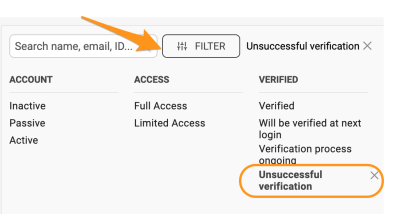
Filter the users by verification
Administrators can filter users by criteria such as Unsuccessful verification.
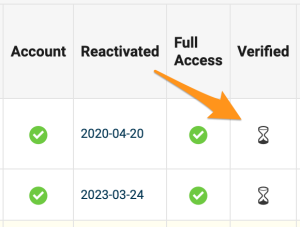
Check the Verified column
Users whose verification is pending or incomplete display a sandglass icon in the Verified column. Users with an unverified status have a red dot.
Verify the user manually
If the administrator is certain that the user should be validated, or wishes to restart the verification process, they can start the verification again or verify the user directly in the user’s profile:
-
Open the user’s edit screen. Go to the user edit screen.

-
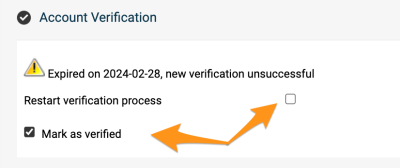
Show the account verification. Go to the Account Verification section and click Show.

-
Restart or confirm the verification. To restart the verification process, tick Restart verification process. To validate the user manually, select Mark as verified.
-
Save the changes. Save the user’s profile.
Related article: What is user verification and how does it work?
Keď používateľ neprejde overením, systém jeho účet automaticky zablokuje. Účet zostane aktívny, ale používateľ sa nemôže prihlásiť, kým ho administrátor inštancie neodblokuje.
S týmto postupom vám pomôže váš administrátor systému alebo support@teamguru.com.
Postup pre administrátorov
Filtrovanie používateľov podľa overenia
Administrátori môžu filtrovať používateľov podľa kritérií, napríklad Neúspešné overenie.
Stĺpec Overený
Používatelia, ktorých overenie čaká alebo nie je dokončené, majú v stĺpci Overený ikonu presýpacích hodín. Používatelia so stavom neoverený majú červenú bodku.
Ručné overenie používateľa
Ak si je administrátor istý, že používateľ má byť overený, alebo chce overovanie spustiť odznova, môže overenie znova spustiť alebo používateľa overiť priamo v jeho profile:
-
Otvorte obrazovku úprav používateľa. Prejdite na obrazovku úprav používateľa.
-
Zobrazte overenie účtu. Prejdite do sekcie Overenie účtu a kliknite na Zobraziť.
-
Spustite overenie znova alebo ho potvrďte. Ak chcete overovanie spustiť odznova, začiarknite Znova spustiť overovanie. Ak chcete používateľa overiť ručne, zvoľte Označiť ako overený.
-
Uložte zmeny. Uložte profil používateľa.
Súvisiaci článok: Čo je overenie používateľa a ako funguje?
Potrebujete ďalšiu pomoc?
Napíšte nám. V pracovné dni zvyčajne odpovedáme do hodiny.