如何创建新仪表板
本文由英文机器翻译。 当前显示英文原文。
Use metric dashboards to track your metrics (KPIs) for different parts of your organization (e.g. sites), for partners (suppliers or customers) or for projects.
Create the dashboard
-
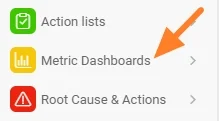
Open the module. Click the Metric Dashboards module.
-
Create a new dashboard. Click the Create New icon.
-
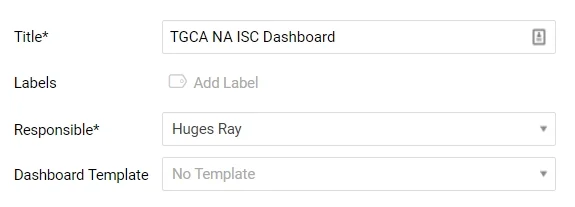
Fill in the main information. Complete the main information, such as Title, Responsible, etc.
-
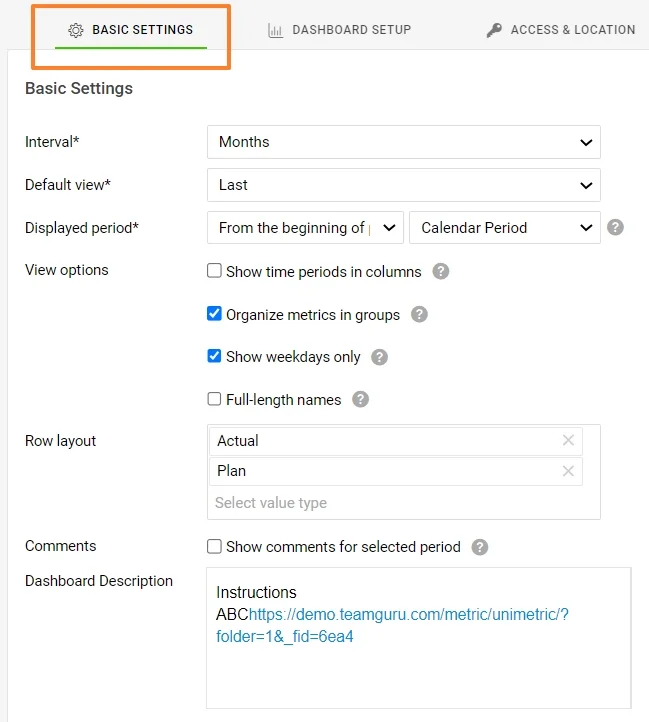
Define the basic settings. Define the default information on the Basic Settings tab, such as the interval, the default view, etc.
-
Save the basic data. When the basic data is filled in, click the Save button.
Add org. units, metrics and responsible people
-
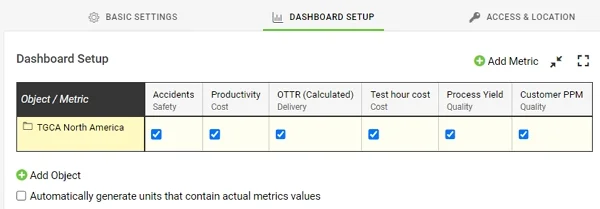
Add org. units and metrics. On the Dashboard Setup tab, choose your organization units and metrics by clicking the Add icons.
-
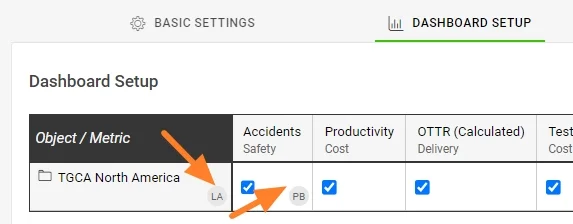
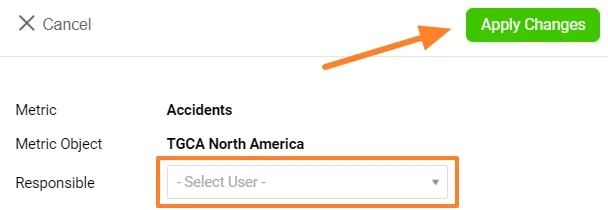
Add the responsible people. To add a Responsible person, click your org. unit (if they are responsible for the whole site), or click into the org. unit/metric cell (if they are responsible for a specific metric only). The responsible person’s initials are displayed next to it.
If the organization units are not set up in your TeamGuru yet, see How I manage the organization structure. If the metric you want to track is not defined in the system yet, see How to create a new metric. You need a sufficient role for this.
Set access and location
-
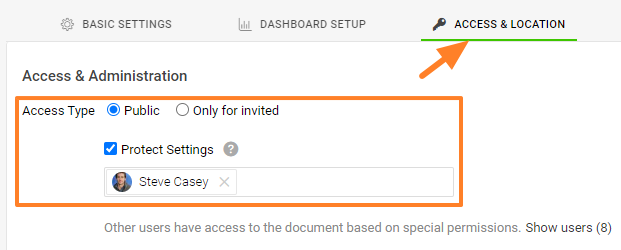
Choose the access type. Go to the Access & Location tab and select the Access Type: share your dashboard with everyone who has sufficient access, or only with invited people. If you choose Only for invited, select the invitees from the menu (they must be set up as active or passive users in the system). Passive users can only receive notifications, if any are set up.
Protect Settings: if you tick this box, only the responsible person and the selected document administrators can change the settings of this dashboard.
-
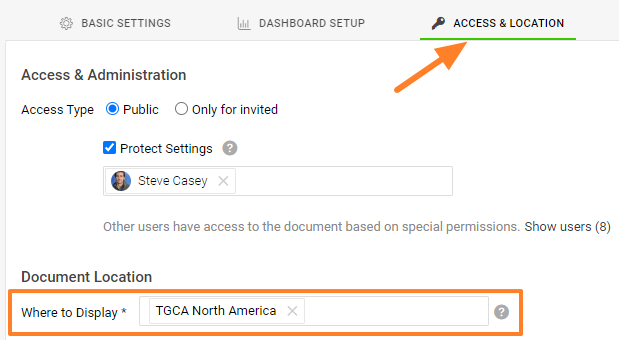
Set the document location. In Document Location, select where the new dashboard should be saved and displayed.
-
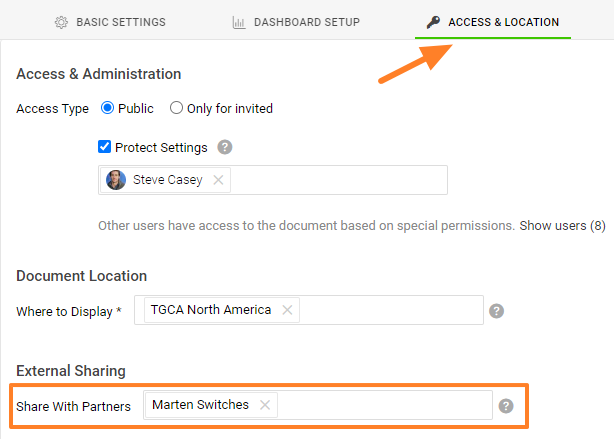
Share with external partners. You can share your document with External Partners: select the existing partners from the menu. If you need to create a new partner in the system, follow this link.
Connect documents and set up notifications
-
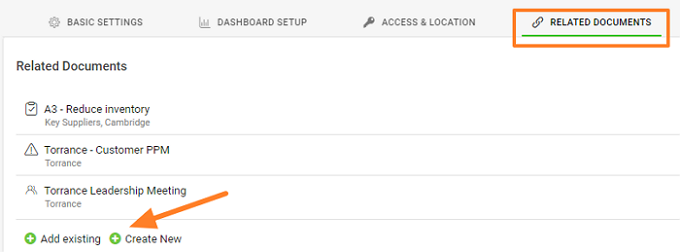
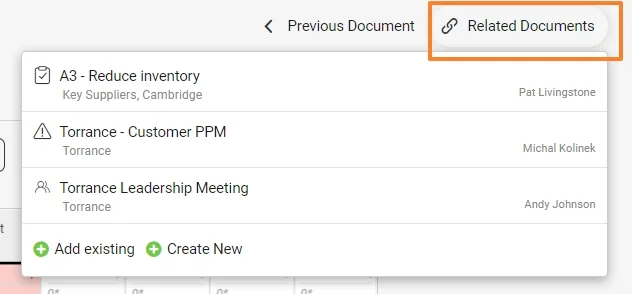
Set up related documents. Set up Related Documents on their tab. You then find these documents and their live links under the Related Documents button in the upper right corner above your document. You can also set up related documents directly from there.
-
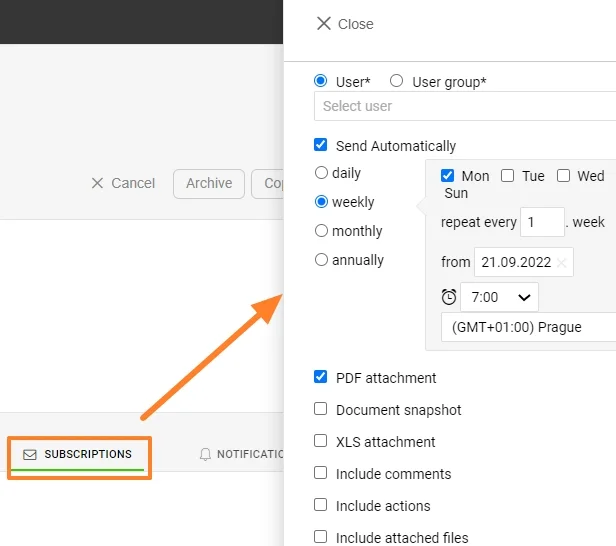
Set up subscriptions. Set up Subscriptions to receive notification emails.
-
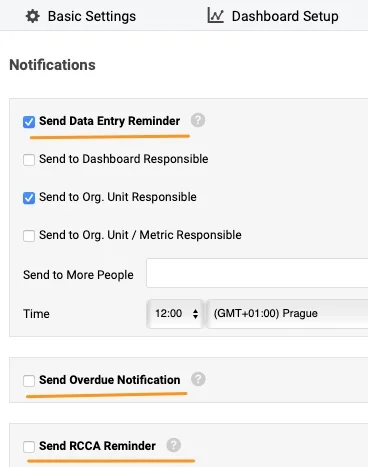
Set up notifications. Set up email Notifications to receive reminders.
Review and use the dashboard
-
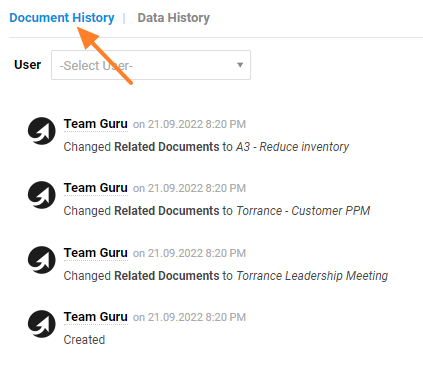
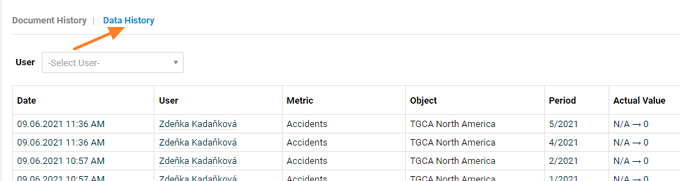
Check the history. Check the History log, where you can see the document history or the data history.

-
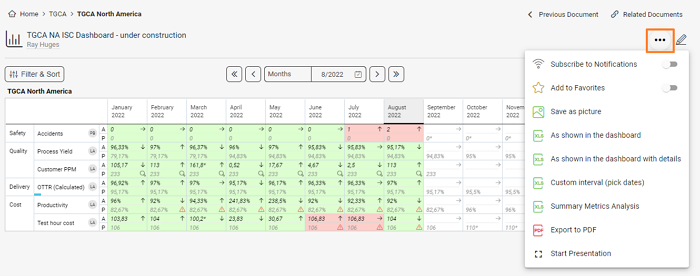
Use the additional features. View your dashboard and use the additional features: subscribe to your document or add it to Favorites, Save as picture, or export your dashboard to XLS or PDF in different ways. You can also start a presentation of your dashboard.
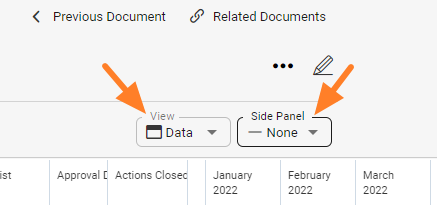
The view options let you see the dashboard as Data, Spreadsheet or Charts, and the Side Panel shows the Attachments, Actions and Comments used in the dashboard.
Video guide: Metric dashboards
使用指标仪表板,您可以跟踪组织中不同部分(例如各工厂)、合作伙伴(供应商或客户)或项目的指标(KPI)。
创建仪表板
-
打开模块。 点击 指标仪表板 模块。
-
新建仪表板。 点击 新建 图标。
-
填写主要信息。 填写 标题、负责人 等主要信息。
-
定义基本设置。 在 基本设置 选项卡中定义默认信息,例如时间间隔、默认视图等。
-
保存基本数据。 填写完基本数据后,点击 保存 按钮。
添加组织单元、指标和负责人
-
添加组织单元和指标。 在 仪表板设置 选项卡中,点击 添加 图标,选择组织单元和指标。
-
添加负责人。 要添加 负责人,请点击组织单元(负责整个工厂时),或点击组织单元与指标交叉的单元格(仅负责某个指标时)。负责人的姓名缩写会显示在旁边。
设置访问权限和位置
-
选择访问类型。 打开 访问权限和位置 选项卡,选择 访问类型:与所有具备相应权限的用户共享仪表板,或仅与受邀人员共享。如果选择 仅限受邀用户,请从菜单中选择受邀人员(他们必须是系统中的活跃用户或被动用户)。被动用户只能接收通知(如已设置)。
保护设置:勾选此项后,只有负责人和选定的文档管理员才能更改此仪表板的设置。
-
设置文档位置。 在 文档位置 中选择新仪表板的保存和显示位置。
-
与外部合作伙伴共享。 您可以与 外部合作伙伴 共享文档:从菜单中选择现有合作伙伴。如需在系统中创建新的合作伙伴,请点击此链接。
关联文档并设置通知
-
设置相关文档。 在 相关文档 选项卡中进行设置。之后,您可以通过文档上方右上角的 相关文档 按钮找到这些文档及其实时链接,也可以直接在那里设置相关文档。
-
设置订阅。 设置 订阅,以接收通知邮件。
-
设置通知。 设置电子邮件 通知,以接收提醒。
查看和使用仪表板
-
查看历史记录。 查看 历史记录 日志,了解文档历史或数据历史。
-
使用更多功能。 查看仪表板并使用更多功能:订阅文档或将其加入 收藏夹、另存为图片,或以多种方式将仪表板导出为XLS或PDF。您还可以演示仪表板。
通过视图选项,您可以按 数据、表格 或 图表 查看仪表板;侧边栏 会显示仪表板中使用的 附件、行动 和 评论。
视频教程:指标仪表板
还需要帮助吗?
请给我们留言。工作日我们通常会在一小时内回复。