指标的更多设置:附加规则
本文由英文机器翻译。 当前显示英文原文。
Besides the metric’s basic settings, you can also set up additional rules in the following sections.
More Settings tab
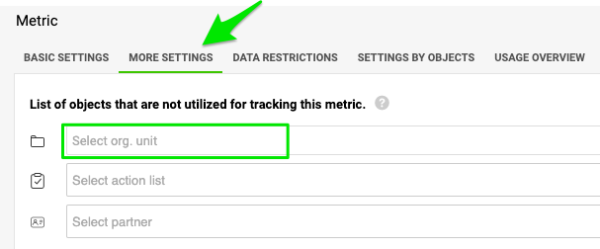
Exclude units from data collection
If you do not want to track data for a particular unit and metric and display this combination in the metric dashboard, add the unit to the units that will NOT collect the data. The same settings can be used for projects and partners.
If another unit in the same dashboard collects data for the metric, you still see the metric and org. unit combination in the dashboard, but its data entry field is greyed out (only greyed out, NOT LOCKED). Otherwise, the combination is not displayed in the dashboard.
Set the calculation priority
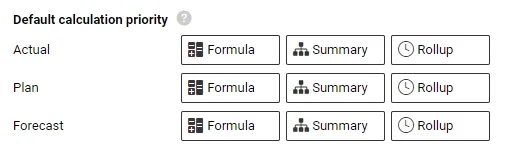
There are three different metric calculations in the system: Formula (e.g. Metric 1 + Metric 2), Summary (e.g. the sum of the units for a region) and Rollup (e.g. weekly values to monthly values).
You can change the company’s Default calculation priority individually for the actual, plan and forecast values, using drag and drop.
Adjust it either for the whole company, or set up a special rule per org. unit (on the next tab, Settings by Org. Units).
Data is displayed in your metric dashboard according to this priority (1st, 2nd and 3rd).
Enable approvals
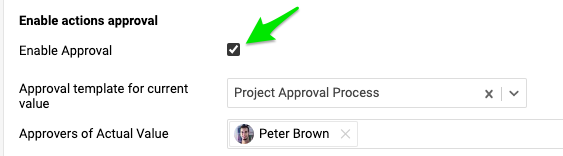
You can also enable approvals. If you gather data for a project metric, you can choose the approver for specific values. The approval process template must be set up first.
This tab also shows the custom fields, if any have been created in the system.
Other tabs
Data Restrictions
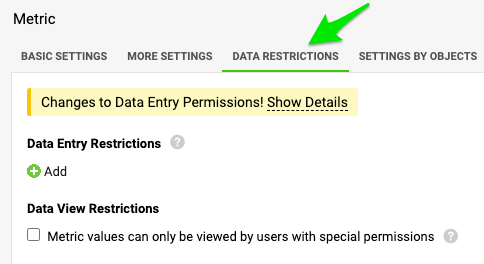
In this article, you learn how to lock specific values or time periods for data entry, and how to assign specific users to view or enter them.
Settings by Org. Units
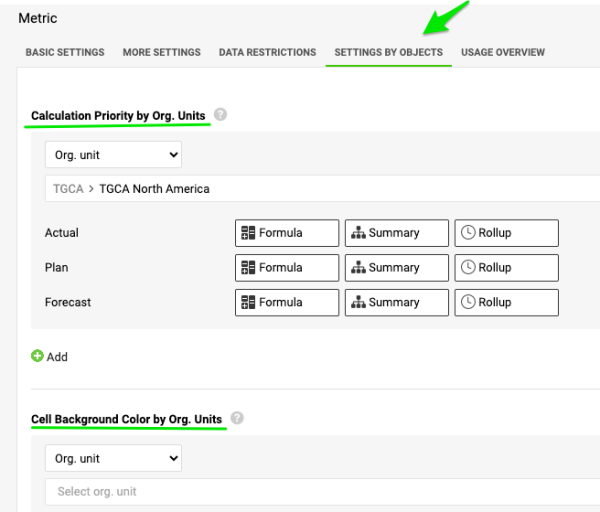
With Calculation Priority by Org. Units and Cell Background Color by Org. Units, you can specify different priorities based on organizational units or other data entry objects (e.g. action list, partner etc.).
Usage Overview
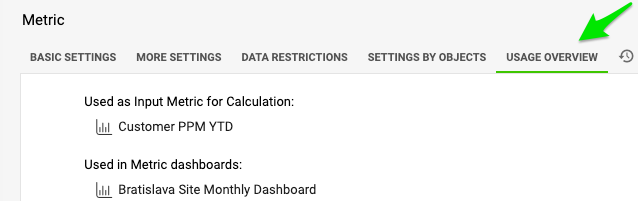
Here you find a list of other metrics or documents where the metric is used (Input Metric for Calculation, Used in metric dashboards etc.). You can use the live links as needed.
History Log
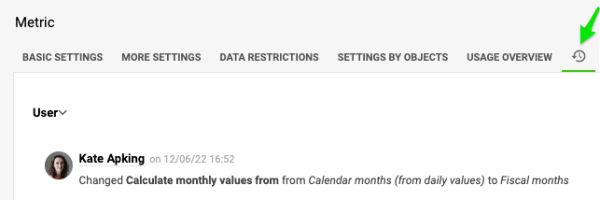
Here you find a log of all activity in your metric’s settings.
除了指标的基本设置,您还可以在以下部分设置附加规则。
“更多设置”选项卡
将单元排除在数据收集之外
如果您不想跟踪某个单元和指标的数据,也不想在指标仪表板中显示这一组合,请将该单元添加到“不收集数据”的单元中。同样的设置也适用于项目和合作伙伴。
如果同一仪表板中有其他单元收集该指标的数据,仪表板中仍会显示该指标与组织单元的组合,但其数据录入字段会显示为灰色(只是灰色,并未锁定)。否则,该组合不会显示在仪表板中。
设置计算优先级
系统中有三种指标计算方式:公式(例如指标1+指标2)、汇总(例如某个区域各单元的总和)和累计(例如由周值汇总为月值)。
您可以通过拖放,分别更改实际值、计划值和预测值的公司默认计算优先级。
您可以为整个公司调整优先级,也可以为每个组织单元设置特殊规则(在下一个选项卡按组织单元设置中)。
指标仪表板会按照此优先级(第1、第2和第3)显示数据。
启用审批
您还可以启用审批。如果您为项目指标收集数据,可以为特定数值选择审批人。必须先设置审批流程模板。
如果系统中已创建自定义字段,此选项卡中也会显示这些字段。
其他选项卡
数据限制
在本文中,您将了解如何锁定特定数值或时间期间的数据录入,以及如何指定可查看或录入这些数据的用户。
按组织单元设置
使用按组织单元设置计算优先级和按组织单元设置单元格背景色,可以根据组织单元或其他数据录入对象(例如行动清单、合作伙伴等)指定不同的优先级。
使用概览
这里列出了使用该指标的其他指标或文档(计算的输入指标、已用于指标仪表板等)。您可以根据需要使用其中的实时链接。
历史记录
这里记录了指标设置中的所有活动。
还需要帮助吗?
请给我们留言。工作日我们通常会在一小时内回复。