So legen Sie ein Dokument mit einer Arbeitsanweisung an
Maschinelle Übersetzung aus dem Englischen. Englisches Original wird angezeigt.
Working instructions are a specific type of document, created in the Documents module.
Before you create your first document, you have to set up your document type as Working Instructions. To do so, see How to create a new document type. Once the document type is created, you can start creating a document.
Create the document
-
Add a new document. Go to the Documents module and click the Add icon.

-
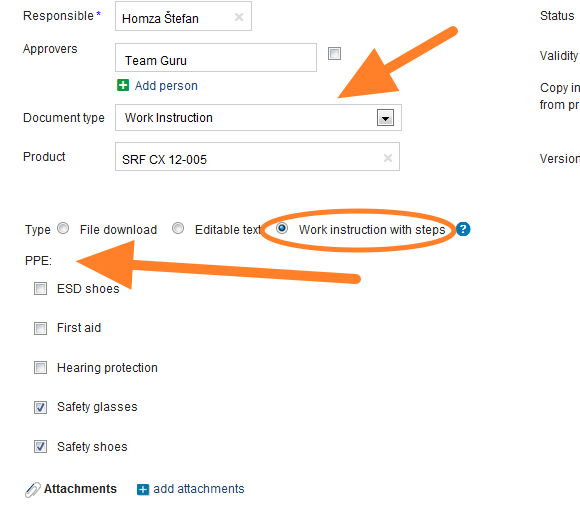
Fill in the heading data.
-
Select the responsible person.
-
Choose the approvers. Choose one or more approvers for the document.
-
Set up the header details. Set up all the header details: document type, version and validity.
-
Select the type. Select Work Instruction with Steps as the Type.
-
Select the required PPE.
-
Save the document. Save the document, then start entering the working steps.
Add the working steps
-
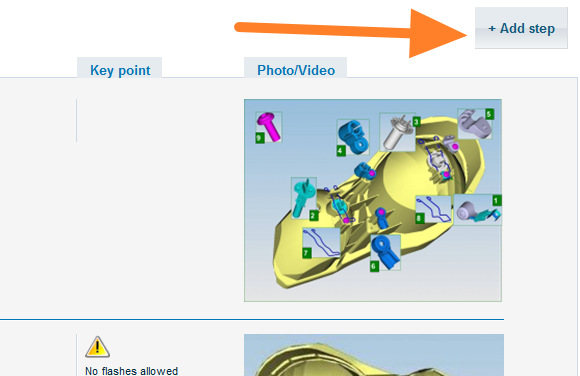
Add the first step. Click the Add step button.
-
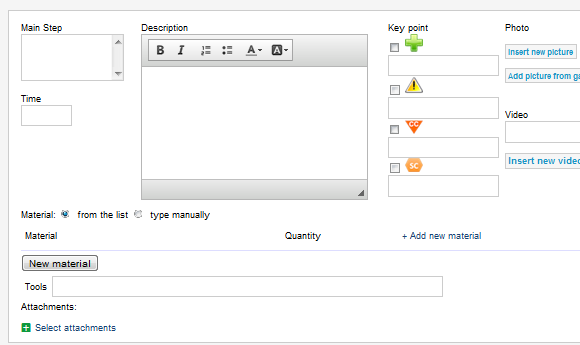
Enter the step details. On the screen that opens, enter all the details of the step. You can add attachments, pictures or videos. Once all the details are entered, click Save and go on to the next step.
-
Send the document for approval. Once your document is complete, click Save & Send for Approval. For more details, see the article describing the approval process: Who can approve a document and how.
Video guide
Arbeitsanweisungen sind ein besonderer Dokumenttyp, den Sie im Modul Dokumente anlegen.
Bevor Sie Ihr erstes Dokument anlegen, müssen Sie den Dokumenttyp Arbeitsanweisungen einrichten. Wie das geht, lesen Sie unter So legen Sie einen neuen Dokumenttyp an. Sobald der Dokumenttyp angelegt ist, können Sie mit dem Dokument beginnen.
Dokument anlegen
-
Neues Dokument hinzufügen. Öffnen Sie das Modul Dokumente und klicken Sie auf das Symbol Hinzufügen.
-
Kopfdaten ausfüllen.
-
Verantwortliche Person wählen.
-
Freigebende wählen. Wählen Sie eine oder mehrere Personen, die das Dokument freigeben.
-
Angaben im Kopfbereich festlegen. Legen Sie alle Angaben im Kopfbereich fest: Dokumenttyp, Version und Gültigkeit.
-
Typ wählen. Wählen Sie als Typ die Option Arbeitsanweisung mit Schritten.
-
Erforderliche PSA wählen.
-
Dokument speichern. Speichern Sie das Dokument und beginnen Sie dann mit der Eingabe der Arbeitsschritte.
Arbeitsschritte hinzufügen
-
Ersten Schritt hinzufügen. Klicken Sie auf Schritt hinzufügen.
-
Details des Schritts eingeben. Geben Sie im sich öffnenden Fenster alle Details des Schritts ein. Sie können Anhänge, Bilder oder Videos hinzufügen. Wenn alles eingegeben ist, klicken Sie auf Speichern und fahren mit dem nächsten Schritt fort.
-
Dokument zur Freigabe senden. Wenn Ihr Dokument fertig ist, klicken Sie auf Speichern & zur Freigabe senden. Mehr dazu im Artikel zum Freigabeprozess: Wer kann ein Dokument freigeben und wie?
Video-Tutorial
Brauchen Sie weitere Hilfe?
Schreiben Sie uns. An Werktagen antworten wir meist innerhalb einer Stunde.