Ako eskalovať akciu
Strojový preklad z angličtiny. Zobrazený je anglický originál.
The Escalate action feature lets you escalate an action when it needs additional attention or support. Select Escalate action, choose the appropriate person and provide any relevant details or comments.
Key features
- Any action in the system can be escalated to one or more users.
- The system automatically sends an email notification when an action is escalated.
- Escalated actions are clearly highlighted and easy to filter.
- You can see when an action was escalated and, once it is resolved, view the resolution details as well.
Escalate an action to users
Choose who to escalate to
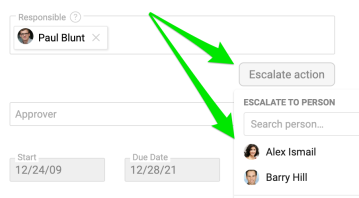
Open the action and click Escalate action. You see a suggested list of users who may be relevant to the escalation, such as the project owner, internal team members or the action’s responsible persons. You can also select any user who is not currently part of the project in the Search person field. You can add multiple users.
View the escalation details
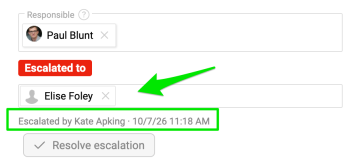
Once an action has been escalated, you can view the escalation details directly in the action. The user receives an automatic email notification with a live link to the action. The user the action was escalated to also sees it on their My Dashboard page.


Find escalated actions
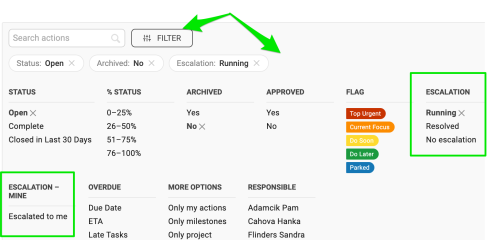
Use the available filters to easily find escalated actions. The person the action was escalated to is also clearly highlighted in the action.

Resolve the escalation
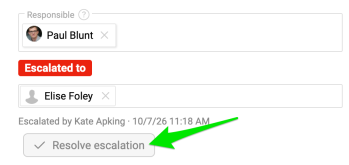
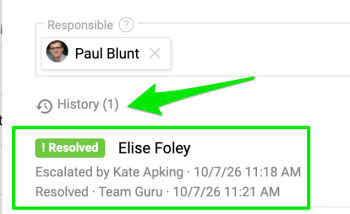
Once the issue has been resolved, click Resolve escalation. The escalation details are then available in the History, including who escalated the action and when.
You can repeat the process if needed.
Escalate an action with a template
Choose an escalation template
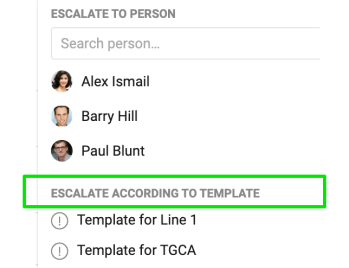
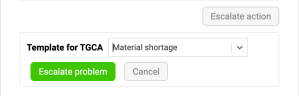
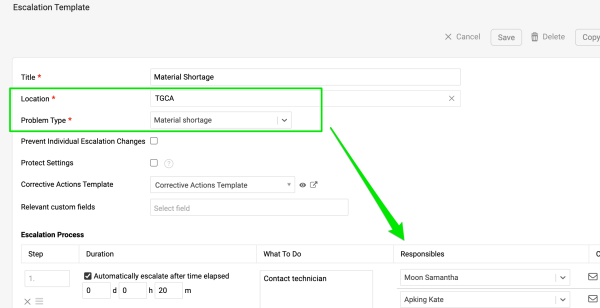
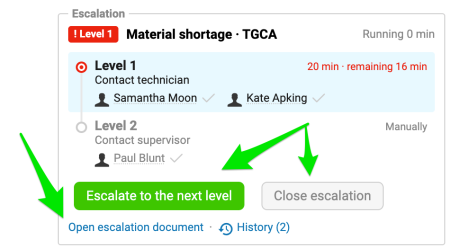
Choose from the predefined Escalation Templates that your administrator has configured in the system. The action is then escalated to the person(s) defined in the template. If there are several escalation levels, you can escalate to the next level.
Follow up in Problem Escalation
Please note that escalating an action with a template is available only if the Problem Escalation module is enabled. Escalating with a template automatically creates a document in the Problem Escalation module. The two documents are linked, and the escalation can be closed either directly from the action or from the Problem Escalation document itself.

Escalate an action from a metric
Add an action to the metric
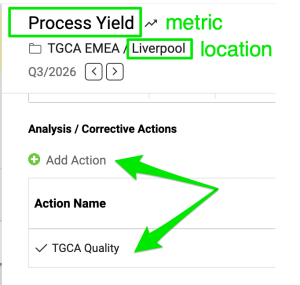
Go to your metric, add an action and start the escalation process following the same steps as above.
Notify by location with a user group
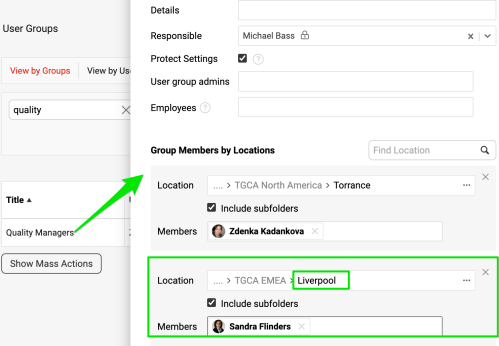
Your administrator can also predefine a user group based on location. The appropriate person for the specific location is then notified when an escalation occurs.
Funkcia Eskalovať akciu vám umožní eskalovať akciu, keď si vyžaduje viac pozornosti alebo podpory. Zvoľte Eskalovať akciu, vyberte vhodnú osobu a doplňte potrebné podrobnosti alebo komentáre.
Hlavné funkcie
- Každú akciu v systéme môžete eskalovať na jedného alebo viacerých používateľov.
- Pri eskalácii akcie systém automaticky pošle upozornenie e-mailom.
- Eskalované akcie sú zreteľne zvýraznené a dajú sa ľahko vyfiltrovať.
- Vidíte, kedy bola akcia eskalovaná, a po jej vyriešení aj podrobnosti o riešení.
Eskalujte akciu na používateľov
Zvoľte, na koho eskalovať
Otvorte akciu a kliknite na Eskalovať akciu. Zobrazí sa návrh používateľov, ktorí môžu byť pre eskaláciu dôležití, napríklad vlastník projektu, členovia interného tímu alebo zodpovedné osoby akcie. V poli Hľadať osobu môžete vybrať aj ktoréhokoľvek používateľa, ktorý momentálne nie je súčasťou projektu. Pridať môžete viacerých používateľov.
Pozrite si podrobnosti eskalácie
Po eskalácii akcie uvidíte podrobnosti eskalácie priamo v akcii. Používateľ dostane automatické upozornenie e-mailom s priamym odkazom na akciu. Používateľ, na ktorého bola akcia eskalovaná, ju uvidí aj na stránke Môj dashboard.
Nájdite eskalované akcie
Eskalované akcie ľahko nájdete pomocou dostupných filtrov. Osoba, na ktorú bola akcia eskalovaná, je v akcii tiež zreteľne zvýraznená.
Vyriešte eskaláciu
Keď je problém vyriešený, kliknite na Vyriešiť eskaláciu. Podrobnosti eskalácie sú potom dostupné v Histórii vrátane toho, kto a kedy akciu eskaloval.
V prípade potreby môžete postup zopakovať.
Eskalujte akciu pomocou šablóny
Zvoľte šablónu eskalácie
Vyberte si z preddefinovaných Šablón eskalácie, ktoré v systéme nastavil váš administrátor. Akcia sa potom eskaluje na osobu alebo osoby určené v šablóne. Ak je úrovní eskalácie viac, môžete eskalovať na ďalšiu úroveň.
Pokračujte v module Eskalácia problémov
Eskalácia akcie pomocou šablóny je dostupná len vtedy, ak je zapnutý modul Eskalácia problémov. Pri eskalácii pomocou šablóny sa v module Eskalácia problémov automaticky vytvorí dokument. Oba dokumenty sú prepojené a eskaláciu môžete uzavrieť priamo z akcie alebo zo samotného dokumentu Eskalácie problémov.
Eskalujte akciu z metriky
Pridajte k metrike akciu
Prejdite na metriku, pridajte akciu a spustite eskaláciu rovnakým postupom ako vyššie.
Upozorňujte podľa lokality pomocou skupiny používateľov
Váš administrátor môže tiež vopred nastaviť skupinu používateľov podľa lokality. Pri eskalácii potom dostane upozornenie príslušná osoba pre danú lokalitu.
Potrebujete ďalšiu pomoc?
Napíšte nám. V pracovné dni zvyčajne odpovedáme do hodiny.