如何升级行动
本文由英文机器翻译。 当前显示英文原文。
The Escalate action feature lets you escalate an action when it needs additional attention or support. Select Escalate action, choose the appropriate person and provide any relevant details or comments.
Key features
- Any action in the system can be escalated to one or more users.
- The system automatically sends an email notification when an action is escalated.
- Escalated actions are clearly highlighted and easy to filter.
- You can see when an action was escalated and, once it is resolved, view the resolution details as well.
Escalate an action to users
Choose who to escalate to
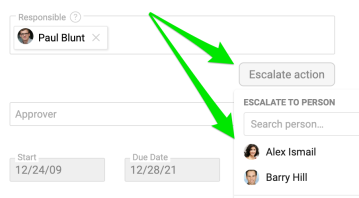
Open the action and click Escalate action. You see a suggested list of users who may be relevant to the escalation, such as the project owner, internal team members or the action’s responsible persons. You can also select any user who is not currently part of the project in the Search person field. You can add multiple users.
View the escalation details
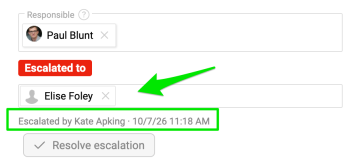
Once an action has been escalated, you can view the escalation details directly in the action. The user receives an automatic email notification with a live link to the action. The user the action was escalated to also sees it on their My Dashboard page.


Find escalated actions
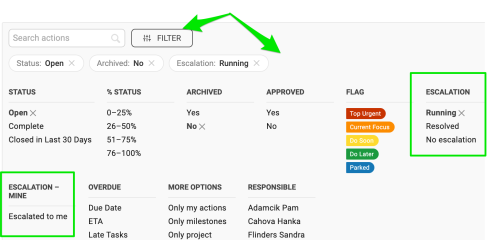
Use the available filters to easily find escalated actions. The person the action was escalated to is also clearly highlighted in the action.

Resolve the escalation
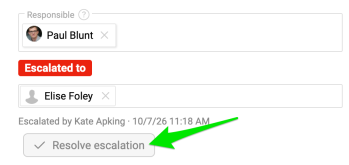
Once the issue has been resolved, click Resolve escalation. The escalation details are then available in the History, including who escalated the action and when.
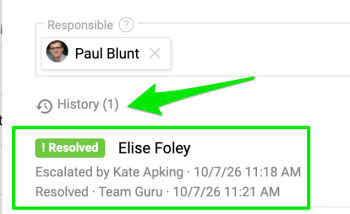
You can repeat the process if needed.
Escalate an action with a template
Choose an escalation template
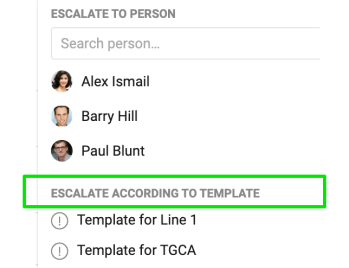
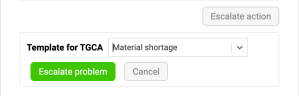
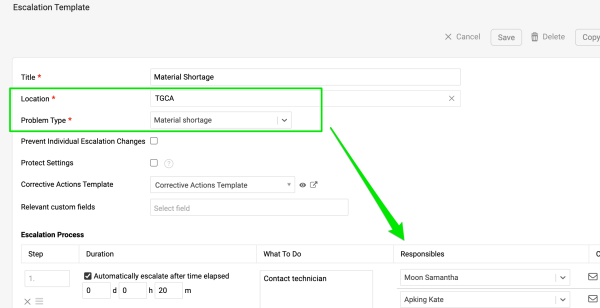
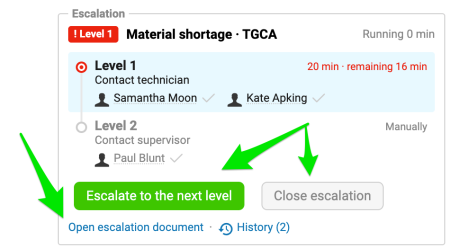
Choose from the predefined Escalation Templates that your administrator has configured in the system. The action is then escalated to the person(s) defined in the template. If there are several escalation levels, you can escalate to the next level.
Follow up in Problem Escalation
Please note that escalating an action with a template is available only if the Problem Escalation module is enabled. Escalating with a template automatically creates a document in the Problem Escalation module. The two documents are linked, and the escalation can be closed either directly from the action or from the Problem Escalation document itself.

Escalate an action from a metric
Add an action to the metric
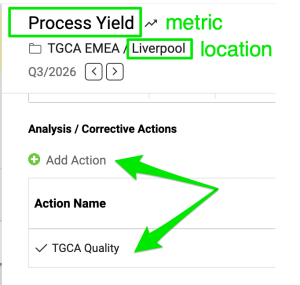
Go to your metric, add an action and start the escalation process following the same steps as above.
Notify by location with a user group
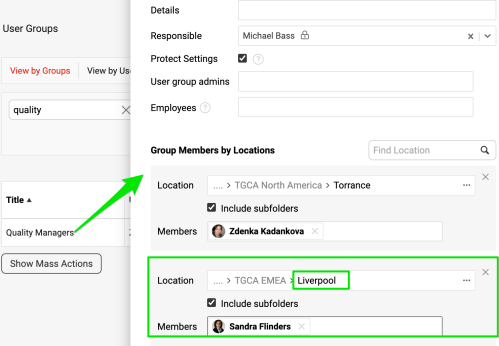
Your administrator can also predefine a user group based on location. The appropriate person for the specific location is then notified when an escalation occurs.
当某个行动需要更多关注或支持时,可以使用升级行动功能将其升级。选择升级行动,选择合适的人员,并填写相关详细信息或评论。
主要功能
- 系统中的任何行动都可以升级给一个或多个用户。
- 行动升级时,系统会自动发送电子邮件通知。
- 已升级的行动会醒目标示,便于筛选。
- 您可以看到行动的升级时间,并在问题解决后查看解决详情。
将行动升级给用户
选择升级对象
打开行动,点击升级行动。系统会显示一份可能与此次升级相关的建议用户列表,例如项目负责人、内部团队成员或行动负责人。您也可以在搜索人员字段中选择当前不在该项目中的任何用户。可以添加多个用户。
查看升级详细信息
行动升级后,您可以直接在行动中查看升级详细信息。用户会自动收到电子邮件通知,其中包含指向该行动的实时链接。被升级的用户还会在其我的仪表板页面上看到该行动。
查找已升级的行动
使用可用的筛选条件,轻松找到已升级的行动。被升级的人员也会在行动中醒目标示。
解决升级
问题解决后,点击解决升级。之后可以在历史记录中查看升级详细信息,包括由谁、在何时升级了该行动。
如有需要,可以重复此过程。
使用模板升级行动
选择升级模板
从管理员在系统中配置的预定义升级模板中进行选择。行动随即会升级给模板中定义的人员。如果有多个升级级别,可以升级到下一级。
在问题升级中跟进
请注意,只有启用了问题升级模块,才能使用模板升级行动。使用模板升级时,系统会自动在问题升级模块中创建一个文档。这两个文档相互关联,既可以直接在行动中关闭升级,也可以在问题升级文档中关闭。
从指标升级行动
为指标添加行动
进入指标,添加行动,然后按照上述相同步骤启动升级流程。
通过用户组按地点通知
管理员还可以预先定义基于地点的用户组。发生升级时,系统会通知相应地点的负责人员。
还需要帮助吗?
请给我们留言。工作日我们通常会在一小时内回复。