Ako vytvoriť nový dashboard
Strojový preklad z angličtiny. Zobrazený je anglický originál.
Use metric dashboards to track your metrics (KPIs) for different parts of your organization (e.g. sites), for partners (suppliers or customers) or for projects.
Create the dashboard
-
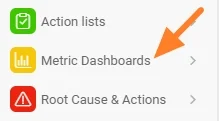
Open the module. Click the Metric Dashboards module.
-
Create a new dashboard. Click the Create New icon.
-
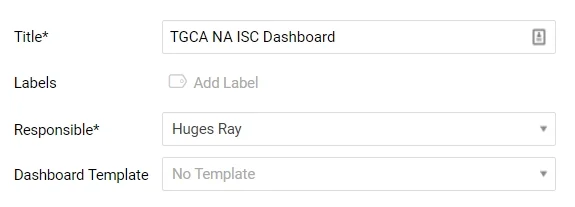
Fill in the main information. Complete the main information, such as Title, Responsible, etc.
-
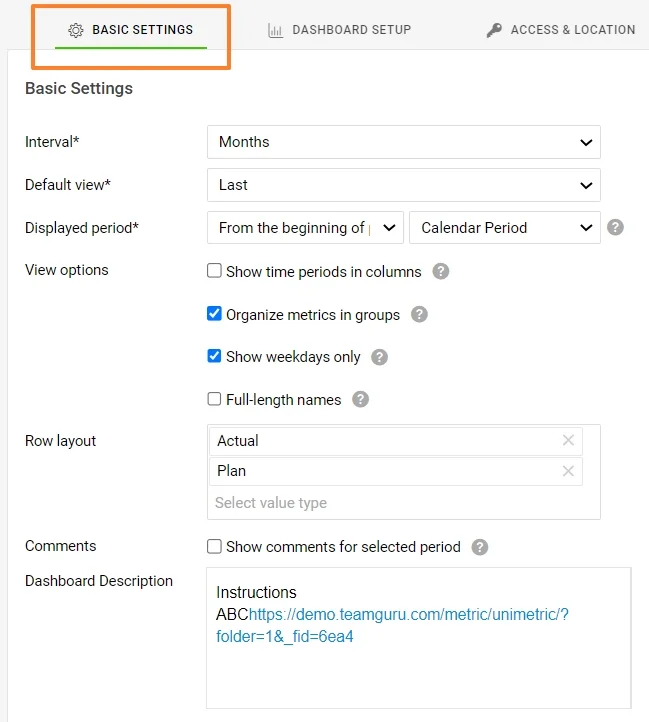
Define the basic settings. Define the default information on the Basic Settings tab, such as the interval, the default view, etc.
-
Save the basic data. When the basic data is filled in, click the Save button.
Add org. units, metrics and responsible people
-
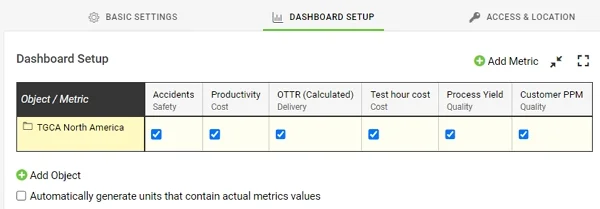
Add org. units and metrics. On the Dashboard Setup tab, choose your organization units and metrics by clicking the Add icons.
-
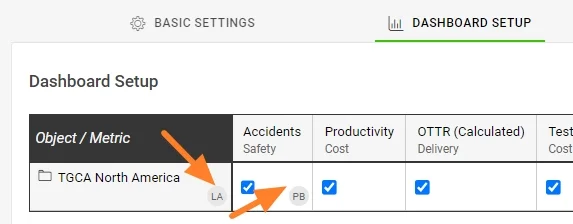
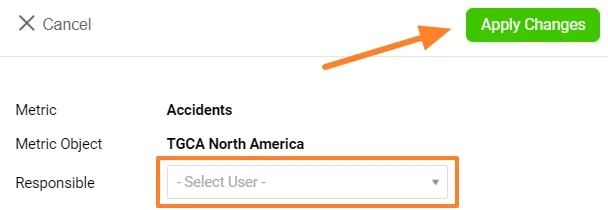
Add the responsible people. To add a Responsible person, click your org. unit (if they are responsible for the whole site), or click into the org. unit/metric cell (if they are responsible for a specific metric only). The responsible person’s initials are displayed next to it.
If the organization units are not set up in your TeamGuru yet, see How I manage the organization structure. If the metric you want to track is not defined in the system yet, see How to create a new metric. You need a sufficient role for this.
Set access and location
-
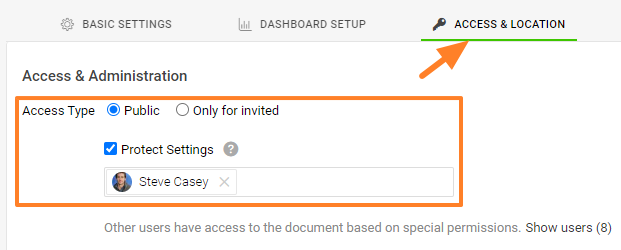
Choose the access type. Go to the Access & Location tab and select the Access Type: share your dashboard with everyone who has sufficient access, or only with invited people. If you choose Only for invited, select the invitees from the menu (they must be set up as active or passive users in the system). Passive users can only receive notifications, if any are set up.
Protect Settings: if you tick this box, only the responsible person and the selected document administrators can change the settings of this dashboard.
-
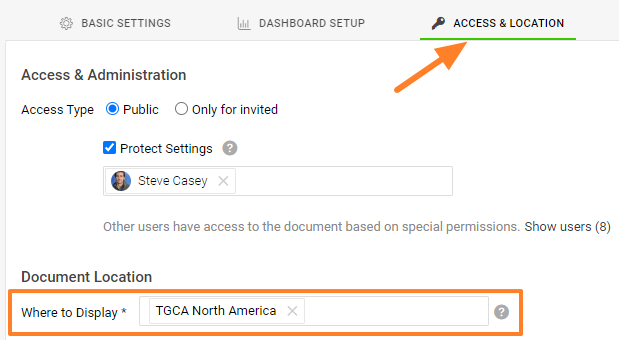
Set the document location. In Document Location, select where the new dashboard should be saved and displayed.
-
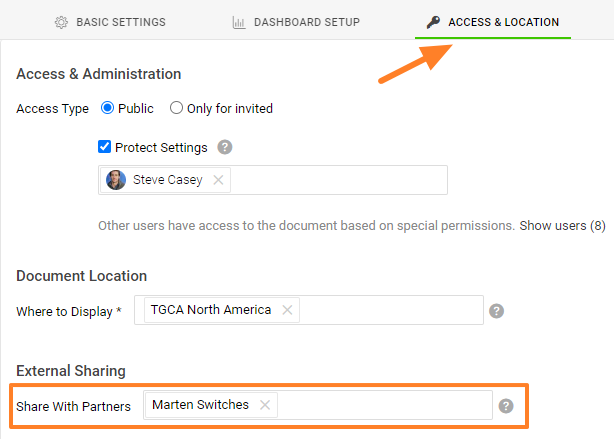
Share with external partners. You can share your document with External Partners: select the existing partners from the menu. If you need to create a new partner in the system, follow this link.
Connect documents and set up notifications
-
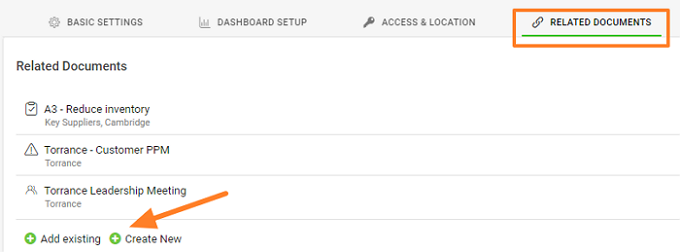
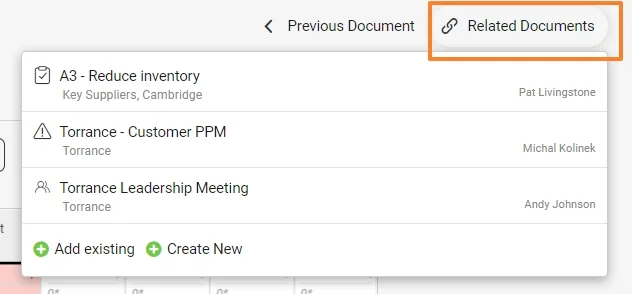
Set up related documents. Set up Related Documents on their tab. You then find these documents and their live links under the Related Documents button in the upper right corner above your document. You can also set up related documents directly from there.
-
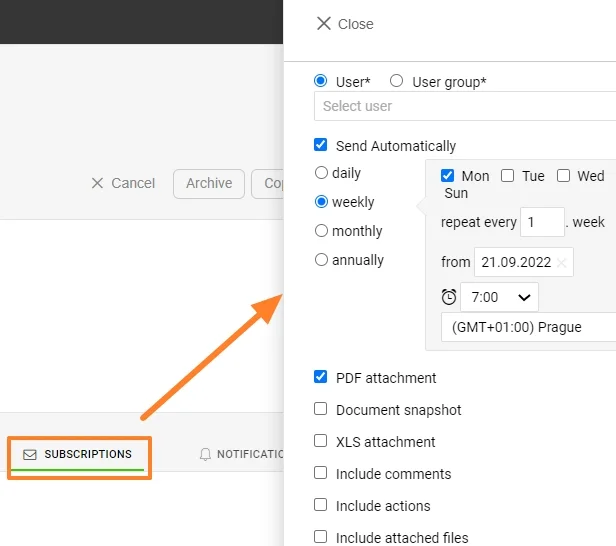
Set up subscriptions. Set up Subscriptions to receive notification emails.
-
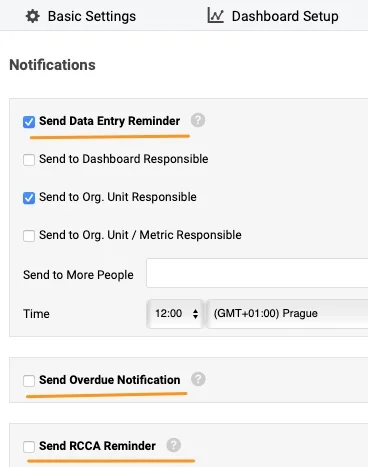
Set up notifications. Set up email Notifications to receive reminders.
Review and use the dashboard
-
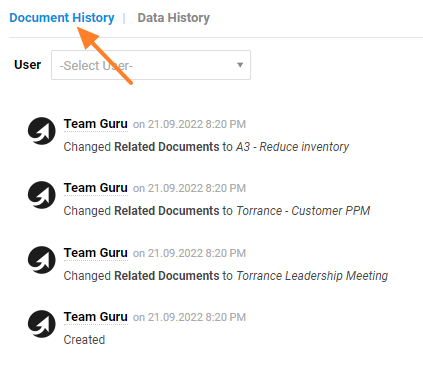
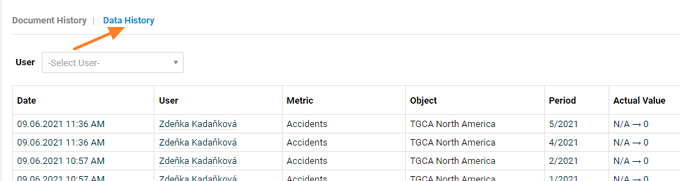
Check the history. Check the History log, where you can see the document history or the data history.

-
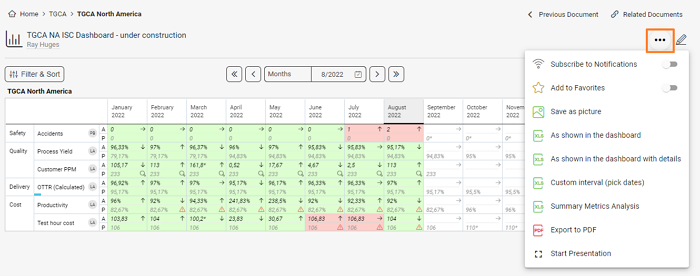
Use the additional features. View your dashboard and use the additional features: subscribe to your document or add it to Favorites, Save as picture, or export your dashboard to XLS or PDF in different ways. You can also start a presentation of your dashboard.
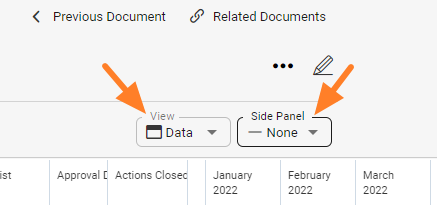
The view options let you see the dashboard as Data, Spreadsheet or Charts, and the Side Panel shows the Attachments, Actions and Comments used in the dashboard.
Video guide: Metric dashboards
KPI dashboardy slúžia na sledovanie metrík (KPI) pre rôzne časti vašej organizácie (napr. závody), pre partnerov (dodávateľov alebo zákazníkov) alebo pre projekty.
Vytvorenie dashboardu
-
Otvorte modul. Kliknite na modul KPI dashboardy.
-
Vytvorte nový dashboard. Kliknite na ikonu Vytvoriť nový.
-
Vyplňte hlavné údaje. Vyplňte hlavné údaje, napríklad Názov, Zodpovedný a pod.
-
Určte základné nastavenia. Na karte Základné nastavenia zadajte predvolené údaje, napríklad interval, predvolené zobrazenie a pod.
-
Uložte základné údaje. Po vyplnení základných údajov kliknite na tlačidlo Uložiť.
Pridanie organizačných jednotiek, metrík a zodpovedných osôb
-
Pridajte organizačné jednotky a metriky. Na karte Nastavenie dashboardu vyberte organizačné jednotky a metriky kliknutím na ikony Pridať.
-
Pridajte zodpovedné osoby. Ak chcete pridať Zodpovednú osobu, kliknite na organizačnú jednotku (ak zodpovedá za celý závod) alebo do bunky organizačnej jednotky a metriky (ak zodpovedá iba za konkrétnu metriku). Vedľa sa zobrazia iniciály zodpovednej osoby.
Ak vo vašom TeamGuru ešte nie sú nastavené organizačné jednotky, pozrite si návod Ako spravovať organizačnú štruktúru. Ak metrika, ktorú chcete sledovať, ešte v systéme nie je definovaná, pozrite si návod Ako vytvoriť novú metriku. Potrebujete na to dostatočnú rolu.
Nastavenie prístupu a umiestnenia
-
Zvoľte typ prístupu. Na karte Prístup a umiestnenie vyberte Typ prístupu: dashboard môžete sprístupniť všetkým s dostatočnými oprávneniami alebo iba pozvaným osobám. Ak zvolíte Iba pre pozvaných, vyberte pozvaných z ponuky (v systéme musia byť nastavení ako aktívni alebo pasívni používatelia). Pasívni používatelia môžu iba dostávať upozornenia, ak sú nastavené.
Chrániť nastavenia: ak toto políčko začiarknete, nastavenia dashboardu môže meniť iba zodpovedná osoba a vybraní administrátori dokumentu.
-
Nastavte umiestnenie dokumentu. V časti Umiestnenie dokumentu vyberte, kam sa nový dashboard uloží a kde sa bude zobrazovať.
-
Zdieľajte s externými partnermi. Dokument môžete zdieľať s Externými partnermi: vyberte existujúcich partnerov z ponuky. Ak potrebujete v systéme vytvoriť nového partnera, použite tento odkaz.
Prepojenie dokumentov a nastavenie upozornení
-
Nastavte súvisiace dokumenty. Súvisiace dokumenty nastavíte na ich karte. Tieto dokumenty a ich aktívne odkazy potom nájdete pod tlačidlom Súvisiace dokumenty v pravom hornom rohu nad dokumentom. Súvisiace dokumenty môžete nastaviť aj priamo odtiaľ.
-
Nastavte odbery. Nastavte Odbery, aby ste dostávali e-mailové upozornenia.
-
Nastavte upozornenia. Nastavte e-mailové Upozornenia, aby ste dostávali pripomienky.
Kontrola a používanie dashboardu
-
Skontrolujte históriu. Pozrite si záznam História, kde vidíte históriu dokumentu alebo históriu dát.
-
Využite ďalšie funkcie. Zobrazte si dashboard a využite ďalšie funkcie: prihláste sa na odber dokumentu alebo ho pridajte medzi Obľúbené, použite Uložiť ako obrázok alebo dashboard rôznymi spôsobmi exportujte do XLS či PDF. Dashboard môžete aj spustiť ako prezentáciu.
V možnostiach zobrazenia môžete dashboard zobraziť ako Dáta, Tabuľka alebo Grafy a Bočný panel ukazuje Prílohy, Akcie a Komentáre použité v dashboarde.
Video návod: KPI dashboardy
Potrebujete ďalšiu pomoc?
Napíšte nám. V pracovné dni zvyčajne odpovedáme do hodiny.