Ako vytvoriť novú metriku – základné nastavenia
Strojový preklad z angličtiny. Zobrazený je anglický originál.
Creating a metric in the system requires sufficient access. To keep metrics standardized across your company, agree internally on the name of each metric and its purpose. This ensures that everyone understands and uses the correct metrics.
We recommend contacting your system administrator when you need to create a new metric.
Create a new metric
-
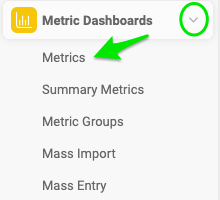
Open the metric list. Go to Metric Dashboards and select Metrics in the submenu.
-
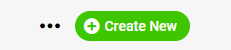
Add a new metric. Click the Add icon to add a new metric.
-
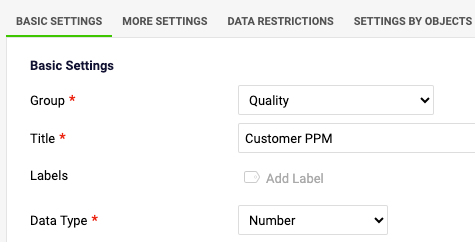
Fill in the basic settings. Fill in the metric definition in the Basic Settings section, as described below.
Basic settings of a metric
Select the group and title
Select the metric Group and fill in the Title of the metric. The title is visible in your dashboards.
Add labels
You can add metric Labels: use an existing label or create a new one. The metric label is displayed in all dashboards where the metric is used. You can also select for which part of the organization the label is used.
Select the data type
Select the Data Type: Number, Percentage, Date, Yes/No metric, or Text metric.
Set the units
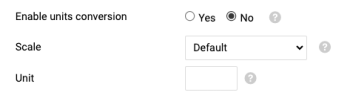
- Choose Yes if you want to enable units conversion.
- Choose a Scale (for thousands, millions, etc.) if needed.
- Fill in the measurement Unit (a symbol or abbreviation, e.g. $, €, USD).
Protect the metric
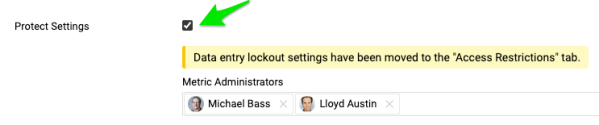
Protect Metric: if you tick this box, only the selected metric administrators can edit the metric’s settings.
Set the valid range of values
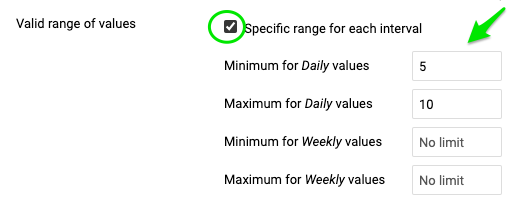
Valid range of values: define the minimum and maximum value for each time period, so that users cannot enter lower or higher values than defined.
Set the background color
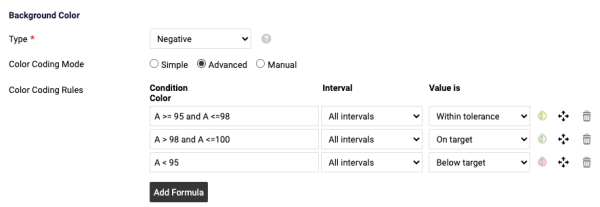
- Background Color: the metric type can be negative, positive or exact value.
- With the Simple color coding mode, you specify whether the values are compared to the Plan or to the Forecast values. If the priority is set to Forecast but you enter only Plan values, the values are automatically compared to the Plan values.
- With the Advanced color coding mode, you can customize the metric color coding according to the conditions you define.
Besides the metric’s basic settings, you can also set up additional rules on the other tabs.
Video guide: How to create a new metric
Related video guides: Enable Unit Conversion, Metric’s Definition & Related documents
Na vytvorenie metriky v systéme potrebujete dostatočný prístup. Aby boli metriky v celej firme jednotné, dohodnite sa interne na názve a účele každej metriky. Všetci tak budú rozumieť správnym metrikám a používať ich.
Ak potrebujete vytvoriť novú metriku, odporúčame obrátiť sa na administrátora systému.
Vytvorenie novej metriky
-
Otvorte zoznam metrík. Otvorte KPI dashboardy a v podmenu vyberte Metriky.
-
Pridajte novú metriku. Novú metriku pridáte kliknutím na ikonu Pridať.
-
Vyplňte základné nastavenia. V sekcii Základné nastavenia vyplňte definíciu metriky podľa popisu nižšie.
Základné nastavenia metriky
Skupina a názov
Vyberte Skupinu metriky a vyplňte Názov metriky. Názov sa zobrazuje v dashboardoch.
Štítky
Metrike môžete pridať Štítky: použite existujúci štítok alebo vytvorte nový. Štítok metriky sa zobrazuje vo všetkých dashboardoch, v ktorých sa metrika používa. Môžete tiež zvoliť, pre ktorú časť organizácie sa štítok používa.
Typ dát
Vyberte Typ dát: číslo, percento, dátum, metrika áno/nie alebo textová metrika.
Jednotky
- Ak chcete zapnúť prevod jednotiek, zvoľte Áno.
- V prípade potreby zvoľte Mierku (tisíce, milióny a pod.).
- Vyplňte mernú Jednotku (symbol alebo skratku, napr. $, €, USD).
Ochrana metriky
Chrániť metriku: ak toto políčko začiarknete, nastavenia metriky môžu upravovať iba vybraní administrátori metriky.
Platný rozsah hodnôt
Platný rozsah hodnôt: určte minimálnu a maximálnu hodnotu pre každé obdobie, aby používatelia nemohli zadať nižšie ani vyššie hodnoty.
Farba pozadia
- Farba pozadia: typ metriky môže byť negatívna, pozitívna alebo presná hodnota.
- V režime farebného označenia Jednoduchý určíte, či sa hodnoty porovnávajú s plánovanými alebo s predpokladanými hodnotami. Ak je ako priorita nastavená predpoveď, ale zadáte iba plánované hodnoty, hodnoty sa automaticky porovnajú s plánovanými.
- V režime farebného označenia Rozšírený môžete farebné označenie metriky prispôsobiť podmienkam, ktoré si sami určíte.
Okrem základných nastavení metriky môžete nastaviť aj ďalšie pravidlá na ostatných kartách.
Video návod: Ako vytvoriť novú metriku
Súvisiace video návody: Zapnutie prevodu jednotiek, Definícia metriky a súvisiace dokumenty
Potrebujete ďalšiu pomoc?
Napíšte nám. V pracovné dni zvyčajne odpovedáme do hodiny.