创建新的流程审批模板
本文由英文机器翻译。 当前显示英文原文。
Setting up approvals should feel smooth and intentional — more like putting a clear plan in motion than chasing signatures.
Approval process templates can be applied across multiple modules in the system, e.g. Action Lists, Safety Alerts, Documents and Kaizen. Creating a new approval template requires the appropriate permissions. If you need help setting one up, please contact your system administrator or support@teamguru.com.
Open the approval process templates
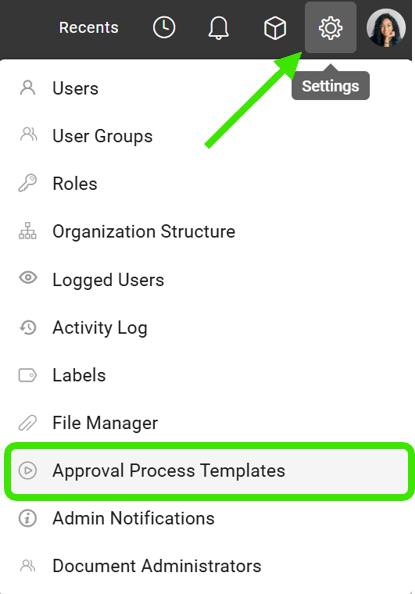
In Settings, select Approval Process Templates.
Name the template and set its options
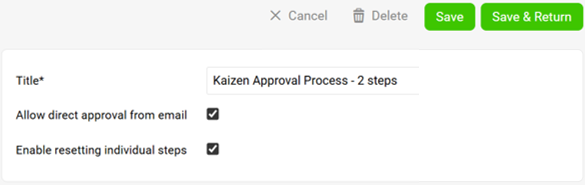
Give your process template a clear, purposeful title that reflects how it will be used. Then choose:
- whether approvals can be executed via email,
- whether individual steps can be reset at the document level.
Configure the approval steps
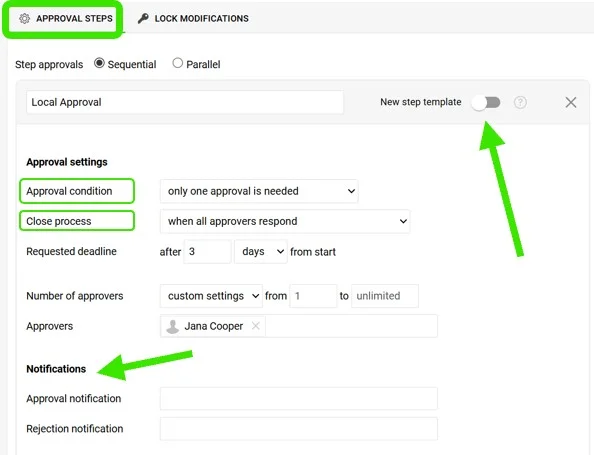
Decide whether the approval flow should be Sequential or Parallel. For each approval step:
- indicate whether it should be saved as a reusable step template,
- assign a step title,
- configure the appropriate settings, including the Approval condition and Close process,
- select who should receive notifications for approvals and rejections.
Standard step or new step template
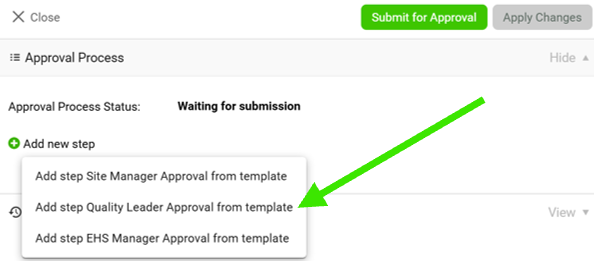
A standard step is fixed in the approval process. If you choose to use the New step template, the step becomes an option that requesters can add for specific documents.
For example, you have a standard one-level approval, and for specific documents you can request two or more levels:
Set the lock modifications
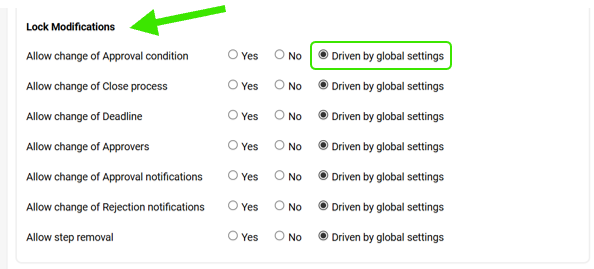
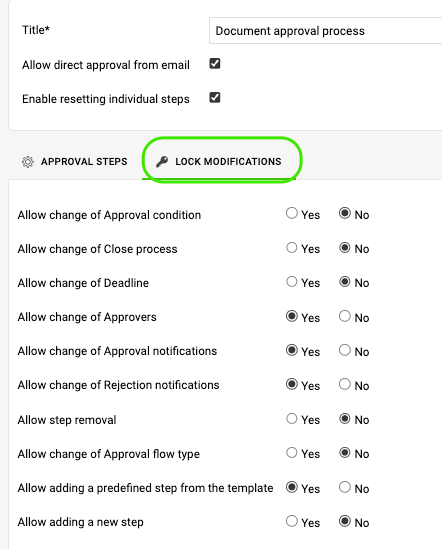
Determine the lock modifications that should apply to each step. Lock modifications driven by global settings are configured on the Lock Modifications tab, but you can still select different locks for each step if needed.
Save the template
Once everything is configured, select Save & Return to finalize your approval process.
Use your new approval process template in Project Stages, Document Approvals, Safety Alerts and Kaizens.
设置审批应当顺畅而有条理,更像是推动一项清晰的计划,而不是四处追着要签字。
审批流程模板可应用于系统中的多个模块,例如行动清单、安全警报、文档和改善。新建审批模板需要相应权限。如需帮助设置,请联系系统管理员或support@teamguru.com。
打开审批流程模板
在设置中选择审批流程模板。
命名模板并设置选项
为流程模板取一个清晰、能体现用途的标题。然后选择:
- 是否可以通过电子邮件执行审批,
- 是否可以在文档级别重置单个步骤。
配置审批步骤
确定审批流程是顺序还是并行。对于每个审批步骤:
- 指定是否将其保存为可重复使用的步骤模板,
- 设置步骤标题,
- 配置相应设置,包括审批条件和关闭流程,
- 选择接收批准和拒绝通知的人员。
标准步骤或新步骤模板
标准步骤在审批流程中是固定的。如果选择使用新步骤模板,该步骤会成为一个选项,申请人可以针对特定文档添加。
例如,您有一个标准的单级审批,而对于特定文档,可以申请两级或更多级审批:
设置锁定修改
确定每个步骤应适用的锁定修改。由全局设置控制的锁定修改在锁定修改选项卡上配置,但如有需要,您仍可以为每个步骤选择不同的锁定。
保存模板
全部配置完成后,选择保存并返回,完成审批流程的创建。
还需要帮助吗?
请给我们留言。工作日我们通常会在一小时内回复。