Rozšírené nastavenia metriky
Strojový preklad z angličtiny. Zobrazený je anglický originál.
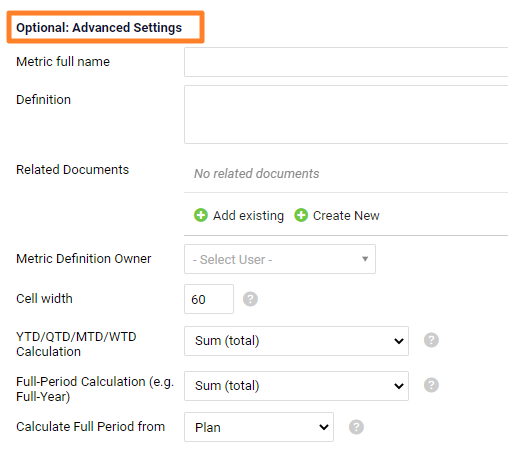
First see the basic metric settings, then follow these instructions to complete the Optional: Advanced Settings of your metric.
Describe the metric
- Metric’s full name explains an abbreviation used in the title of the metric (e.g. OTTR – On-Time to Request).
- The metric’s Definition helps the team understand how to measure and report data correctly.
- Related Documents link your metric to other documents that provide more details.
- Metric Definition Owner is an internal system user whom you can contact about the metric’s definition or other reporting details.
Set the cell width and to-date calculations
- Cell width in the metric dashboard.
- The To-Date (YTD, QTD, MTD, WTD) and Full Year Calculation formula fields can be set up as SUM, AVE, last value entered, or calculation according to a formula. You can define plan or forecast in Calculate Full Period from.
Set the chart axis and decimal places
- Chart axis minimum / maximum defines the values displayed on the chart’s Y-axis. Values below the minimum and above the maximum are hidden.
- Default no. of decimal places is the number of decimal places shown in a metric dashboard that uses this metric.
- How to assign weeks to months: select your preference.
Set up the roll-up
Set up the Roll-up function to see your daily or weekly values automatically rolled up into the monthly values. Choose the calculation from the submenu (Sum, Average etc.) and select the Calendar type.
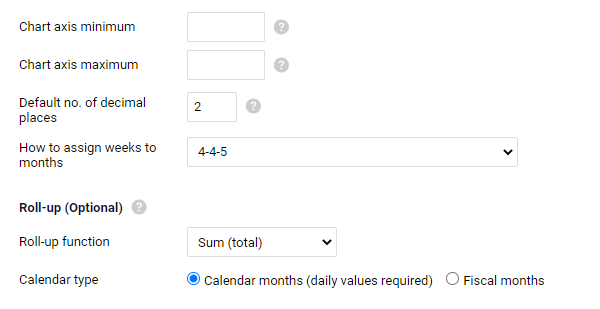
The Calendar month roll-up can be used for daily or monthly data only. If you collect data weekly, you have to roll up your monthly values according to the Fiscal Calendar (4-4-5 or 5-4-4).
If your company does not use a fiscal calendar, choose the Calendar months option and enter both the weekly and the monthly data manually, without system calculation. Quarterly and yearly numbers are calculated automatically. The system cannot calculate a calendar month value from weekly numbers, because one week can be split between two months.
Make it a calculated metric
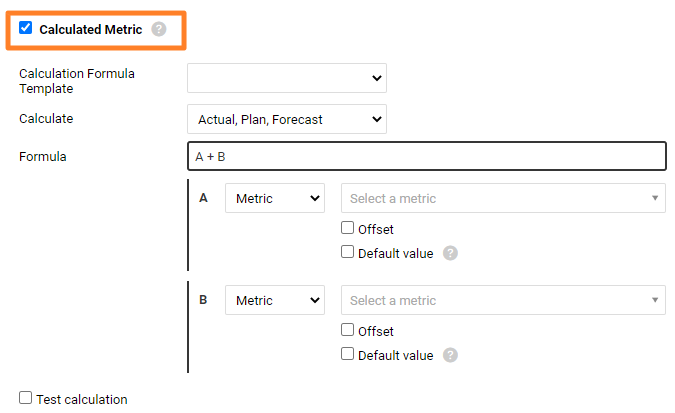
The last option in the metric’s advanced settings is Calculated metric.
- See the list of available functions in Calculated Metrics & Advanced Formulas.
- You can also read Metrics driven by other metrics – Calculated metrics.
Video guide: How to create a new metric
Related video guides: Enable Unit Conversion, Metric’s Definition & Related documents
Najprv si pozrite základné nastavenia metriky a potom podľa tohto návodu vyplňte časť Voliteľné: Rozšírené nastavenia metriky.
Popíšte metriku
- Celý názov metriky vysvetľuje skratku použitú v názve metriky (napr. OTTR – On-Time to Request).
- Definícia metriky pomáha tímu pochopiť, ako dáta správne merať a reportovať.
- Súvisiace dokumenty prepájajú metriku s ďalšími dokumentmi, ktoré obsahujú viac podrobností.
- Vlastník definície metriky je interný používateľ systému, na ktorého sa môžete obrátiť s otázkami k definícii metriky alebo iným podrobnostiam reportovania.
Nastavte šírku bunky a kumulatívne výpočty
- Šírka bunky v KPI dashboarde.
- Polia vzorcov Kumulatívny výpočet (YTD, QTD, MTD, WTD) a výpočet za celý rok môžete nastaviť ako SUM, AVE, poslednú zadanú hodnotu alebo výpočet podľa vzorca. V poli Vypočítať celé obdobie z určíte plán alebo prognózu.
Nastavte os grafu a desatinné miesta
- Minimum / maximum osi grafu určuje hodnoty zobrazené na osi Y grafu. Hodnoty pod minimom a nad maximom sa nezobrazia.
- Predvolený počet desatinných miest je počet desatinných miest zobrazený v KPI dashboarde, ktorý túto metriku používa.
- Ako priradiť týždne k mesiacom: vyberte možnosť podľa seba.
Nastavte agregáciu
Nastavte funkciu Agregácia, ak chcete, aby sa denné alebo týždenné hodnoty automaticky sčítali do mesačných. V podmenu vyberte spôsob výpočtu (Súčet, Priemer atď.) a zvoľte Typ kalendára.
Agregáciu podľa Kalendárneho mesiaca môžete použiť len pre denné alebo mesačné dáta. Ak zbierate dáta týždenne, mesačné hodnoty musíte agregovať podľa Fiškálneho kalendára (4-4-5 alebo 5-4-4).
Ak vaša firma fiškálny kalendár nepoužíva, zvoľte možnosť Kalendárne mesiace a týždenné aj mesačné dáta zadávajte ručne, bez výpočtu v systéme. Štvrťročné a ročné hodnoty sa vypočítajú automaticky. Hodnotu za kalendárny mesiac systém z týždenných čísel vypočítať nevie, pretože jeden týždeň môže patriť do dvoch mesiacov.
Urobte z nej počítanú metriku
Poslednou možnosťou v rozšírených nastaveniach metriky je Počítaná metrika.
- Zoznam dostupných funkcií nájdete v článku Počítané metriky a pokročilé vzorce.
- Prečítať si môžete aj článok Metriky odvodené od iných metrík – počítané metriky.
Video návod: Ako vytvoriť novú metriku
Súvisiace video návody: Zapnutie prepočtu jednotiek, Definícia metriky a súvisiace dokumenty
Potrebujete ďalšiu pomoc?
Napíšte nám. V pracovné dni zvyčajne odpovedáme do hodiny.