如何创建新文档
本文由英文机器翻译。 当前显示英文原文。
The Documents module helps you organize your company’s internal documentation and always works with the latest approved version. You can trace who was informed about a document and when, and who should be informed about a new version.
The Documents module can be linked with the Skill Matrix module. You then know exactly which employees should be informed about a document update when knowledge of the document is needed for a particular skill.
Choose how to create the document
There are 3 ways to create a new document:

-
File Download. Attach your document as a PDF.
-
Editable Text. Create the document directly in TeamGuru.
-
Work Instruction with Steps. A document divided into several steps, in which you can type text and add photos, pictures, timing and materials. For more details, see How to create a working instruction document.
Before you create your first document, you have to set up your document type (SOP, Manual, Work Instructions, etc.). For more details, see How to create a new document type. Once the document type is created, you can start creating your document.
Fill in the document
-
Add a new document. Go to the Documents module and click the Add icon.

-
Fill in the requested data.
-
Select the responsible person.
-
Choose the approvers. Choose one or more approvers for the document.
-
Set up the header details. Set up all the header details: document type, version and validity.
-
Choose the document content. Choose whether you want to upload the document from your PC and save it as an attachment, create a new one (the Editable Text option), or use the Work Instruction with Steps option.
- Attached document = the PDF format of your uploaded file
- Attachment – source file = your original file in XLS, PPT, DOC, etc.
- Attachments = attachments related to your document that other users can open and download
-
Save before entering steps. If you select Work Instruction with Steps, you have to save the document first to be able to start entering the steps.
-
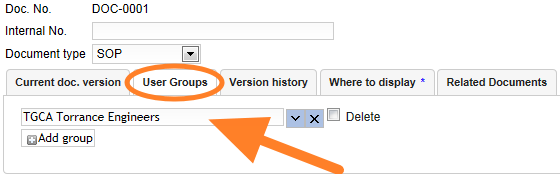
Select the user groups to inform. Go to the User groups tab and select the group to be informed about the document. Here you can predefine which employees are required to learn about the document. If you do not know how to create a new user group, see Where to set up a new user group.
Send the document for approval
-
Save the draft. Click Save & View if you need to make other changes later. The document stays as a draft.
-
Send it for approval. Click Save & Send for Approval if no more changes are to be made.
-
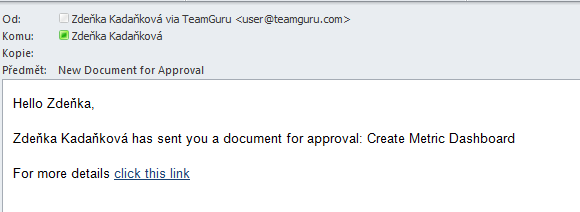
Approvers are notified. The approvers receive an email notification asking them to approve the document.
-
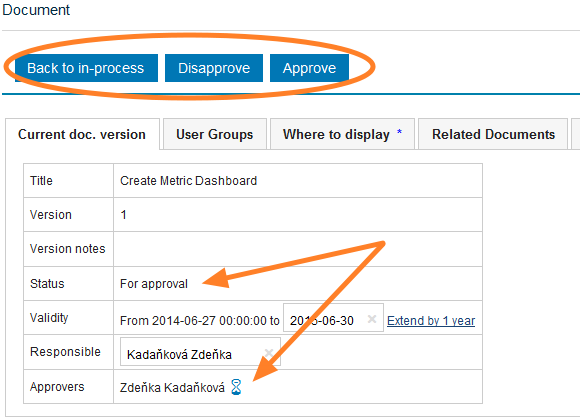
The approver decides. The approver approves or disapproves the document, or returns it to the in-process status.
If any changes need to be made to an approved (active) document, a new version needs to be created. In such a case, see How to create a new document version.
文档 模块可帮助您整理公司内部文件,并确保始终使用最新批准的版本。您可以追溯谁在何时了解了某份文档,以及哪些人需要了解新版本。
文档 模块可以与 技能矩阵 模块关联。当某项技能需要掌握某份文档时,您可以确切知道文档更新后应通知哪些员工。
选择文档的创建方式
创建新文档有3种方式:
-
文件下载。 以PDF格式附加文档。
-
可编辑文本。 直接在TeamGuru中创建文档。
-
分步作业指导书。 分为多个步骤的文档,每个步骤中可以输入文字,并添加照片、图片、时间和物料。详情请参阅如何创建作业指导书文档。
创建第一份文档之前,需要先设置文档类型(SOP、手册、作业指导书等)。详情请参阅如何创建新的文档类型。创建文档类型后,即可开始创建文档。
填写文档
-
添加新文档。 进入 文档 模块,点击 添加 图标。
-
填写所需数据。
-
选择负责人。
-
选择审批人。 为文档选择一个或多个审批人。
-
设置标题信息。 设置所有标题信息:文档类型、版本和有效期。
-
选择文档内容。 选择从电脑上传文档并保存为附件、新建文档(可编辑文本 选项),或使用 分步作业指导书 选项。
- 附加的文档 = 上传文件的PDF格式
- 附件 – 源文件 = XLS、PPT、DOC等格式的原始文件
- 附件 = 与文档相关、其他用户可以打开和下载的附件
-
先保存再输入步骤。 如果选择 分步作业指导书,需要先保存文档,才能开始输入步骤。
-
选择需要告知的用户组。 打开 用户组 选项卡,选择需要了解该文档的用户组。您可以在此预先指定哪些员工必须学习该文档。如果不知道如何创建新用户组,请参阅在哪里设置新用户组。
提交文档审批
-
保存草稿。 如果之后还需要修改,请点击 保存并查看。文档会保持草稿状态。
-
提交审批。 如果无需再修改,请点击 保存并提交审批。
-
审批人收到通知。 审批人会收到电子邮件通知,请其审批该文档。
-
审批人做出决定。 审批人批准或驳回文档,或将其退回到处理中状态。
如果需要修改已批准(生效)的文档,必须创建新版本。具体请参阅如何创建新的文档版本。
还需要帮助吗?
请给我们留言。工作日我们通常会在一小时内回复。